


 |
Start of Tutorial > Start of Trail > Start of Lesson | Lesson Contents |

|
Trail: Learning the Java Language |
|
Lesson: More Features of the Java Language |
|
Help
on searching
Search technology |
Managing Source and Class Files
The JDK relies on hierarchical file systems to manage source and class files for Java programs, although The Java Language Specification does not require this. The strategy is as follows.
You put the source code for a class or interface in a text file whose
name is the short name of the class or interface and whose extension is
.java
(the JDK requires this extension for public classes and it's a
good idea for other classes). Then, you put the source file in a
directory whose name reflects the name of the package to which the
class or interface belongs. For example, the source code for the
Rectangle class would be in a file named
Rectangle.java and the file would be in a directory named
graphics.
The graphics directory may be
anywhere on the file system. The following diagram shows how this works.
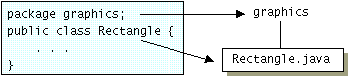
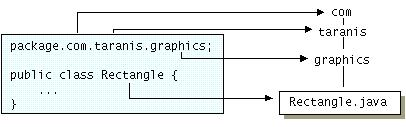
Furthermore, by convention, each company uses its reversed Internet domain name in its package names. (However, some companies now choose to drop "com" from their package names.) The fictional company called Taranis Interactive whose Internet domain name isgraphics.Rectangle class name graphics/Rectangle.java pathname to file
taranis.com would
precede all of its package names with com.taranis.
Each component of
the package name corresponds to a subdirectory.
So, if Taranis had a
graphics package that contained a Rectangle.java
source file, it would
be contained in a series of subdirectories, as shown here:
.class:
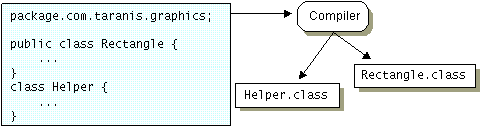
This figure has been reduced to fit on the page.
Click the image to view it at its natural size.
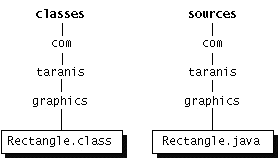
.java file, a .class file should also
be in a series of directories that reflect the package name. However,
it does not have to be in the same directory as its source. You could
arrange your source and class directories separately, like this:
Why all the bother about directories and filenames? You need to manage your source and class files in this manner so that the compiler and the interpreter can find all of the classes and interfaces used by your program. When the compiler encounters a new class as it's compiling your program, it must be able to find the class so as to resolve names, do type checking, and so on. Similarly, when the interpreter encounters a new class as it's running your program, it must be able to find the class to invoke its methods, and so on. Both the compiler and the interpreter search for classes in each directory or zip file listed in your class path.
Definition: A class path is a list of directories or zip files to search for class files.
Each directory listed in the class path is a top-level directory in
which package directories appear. From the top-level directory, the
compiler and the interpreter can construct the rest of the path based
on the package and class name for the class. For example, the class
path entry for the directory structure shown in the previous diagram
page would include classes, but not com or any of the
directories below com.
Both the compiler and the interpreter construct
the path name to a .class file with its full package name.
By default, the compiler and the interpreter search the current directory and the zip file containing the JDK class files. In other words, the current directory and the JDK class files are automatically in your class path. Most, if not all, classes can be found in these two locations. So it's likely that you don't have to worry about your class path. In some cases, however, you may have to set your class path.
Setting the Class Path
If you must, you can change your class path. This can be done in either of two ways:We don't recommend setting the
- Set the
CLASSPATHenvironment variable (not recommended).- Use the
-classpathruntime option when you invoke the compiler or the interpreter.CLASSPATHenvironment variable because it can be long-lived (particularly if you set it in a login or startup script). It's also easy to forget about, and then one day, your programs won't work because the compiler or interpreter loads a crusty old class file instead of the one you want. An old, out-of-dateCLASSPATHvariable is a fruitful source of confusing problems.The second option, setting the class path with the runtime option, is preferable because it sets the class path only for the current invocation of the compiler or the interpreter. Here's how to use the runtime option
-classpathto set your class path.
Platform-specific Details: Using the -classpath Runtime Option: UNIX:DOS shell (Windows 95/NT):javac -classpath .:~/classes:/JDK/lib/classes.zipjavac -classpath .;C:\classes;C:\JDK\lib\classes.zipWhen you specify a class path in this manner, you completely override the current class path. Thus you must include the
classes.zipfile from the JDK in the class path. It's a good idea to include the current directory as well.The order of the entries in the class path is important. When the Java interpreter is looking for a class, it searches the entries in your class path, in order, until it finds a class with the correct name. The Java interpreter runs the first class with the correct name that it encounters and does not search the remaining entries.
Note: If you load an applet into a Java application such as HotJava or the Applet Viewer and the loaded class is in the class path, the applet doesn't have the restrictions that applets loaded over the network do, so it can never be reloaded. We recommend never starting an application such as HotJava in the same directory as an Applet class because the current directory "." is usually part of the class path.
|
|
Start of Tutorial > Start of Trail > Start of Lesson | Lesson Contents |