


 |
Start of Tutorial > Start of Trail > Start of Lesson | Lesson Contents |

|
Trail: JavaBeans |
|
Lesson: Using the BeanBox |
|
Help
on searching
Search technology |
Starting and Using the BeanBox
This section gives you a brief, introductory look at
the BeanBox and it's basic operation.
The beans/beanbox
directory contains Windows (run.bat) and Unix
(run.sh) scripts that start the BeanBox. You can
use these commands to start the BeanBox, or use a
make utility:
| Platform | Command |
|---|---|
| Unix | gmake run
|
| Windows | nmake run
|
See the BDK files beans/doc/makefiles.html and
beans/doc/gnu.txt for information about
getting copies of gnumake and nmake.
When started, the BeanBox displays three windows: The ToolBox, the BeanBox window, and the Properties sheet.
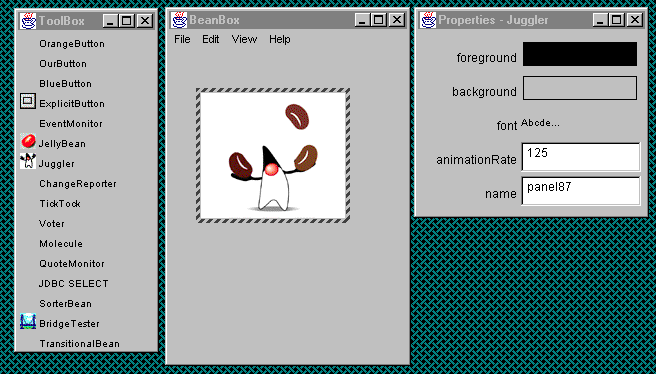
This figure has been reduced to fit on the page.
Click the image to view it at its natural size.
Here are brief descriptions of each window.
- The ToolBox contains the Beans available for use by the BeanBox.
To work on a Bean, you choose it from the ToolBox and drop
it on the BeanBox window.
- The BeanBox window is the area where you visually
wire Beans together, defining how Beans appear,
and interact with other Beans. The BeanBox window is itself
an instance of a BeanBox Bean.
The above screenshot shows the BeanBox window with a
JugglerBean instance dropped in it. Later you'll see how to wire theJugglerto two button Beans that start and stop him juggling.You select among Beans in the BeanBox window simply by clicking on the Bean. The selected Bean will have a hatced border, as the
JugglerBean does in the above screenshot. Which Bean is selected has significance for the Properties sheet. - The Properties sheet displays the properties for the Bean
currently selected within the BeanBox window.
In the above screenshot, the Properties sheet displays
the
JugglerBean's properties. If you drop another Bean in the BeanBox window, the properties sheet will display that Bean's properties.
Adding a Bean to the ToolBox
When the BeanBox is started, it automatically loads the ToolBox with
all the Beans it finds within the JAR files
contained in the beans/jars directory.
Move your JAR files into that directory to have
them automatically loaded at BeanBox startup.
You can load Beans from JAR files located elsewhere by
using the File|LoadJar... BeanBox menu item.
Dropping a Bean on the BeanBox
Clicking on a Bean name within the ToolBox chooses that Bean for
placement within the BeanBox. To drop a JellyBean
instance onto the BeanBox
- Click on the word
JellyBean in the ToolBox. The cursor
will change to a crosshair when flying over the
BeanBox windows.
- Click within the BeanBox. The
JellyBean instance
will appear, and will be selected.
Note the change in the Properties sheet when you put
the JellyBean in the BeanBox. Before you placed the
JellyBean
in the BeanBox, the BeanBox's properties were displayed. After
placing the JellyBean in the BeanBox, the
JellyBean properties
are displayed. If you missed the change,
click within the BeanBox, away from the JellyBean. This will
select the BeanBox rather than the JellyBean. The
Properties sheet will then display the BeanBox's properties.
After dropping a JellyBean instance on the
BeanBox, the Properties sheet displays the JellyBean
properties: color, foreground,
priceInCents, background,
and font.
Editing Bean Properties
The Properties sheet displays each property's name and
its current value. Values are displayed in an editable
text field (strings and numbers), a choice menu (booleans),
or as painted values (colors and fonts).
Each property has an associated property editor.
Clicking on a property within the Properties sheet activates
the property's editor.
Properties displayed in text fields or choice menus
are edited within the Properties sheet.
Because editing their values
requires a more sophisticated user interface, Color and
Font property types use a custom property editor.
When you click on a color or font property a separate panel
will pop up to do the editing.
Try clicking on each of the JellyBean
properties.
Saving and Restoring Beans
You can save the state of a Bean that your are customizing,
and restore the Bean and its saved state at a later time.
The BeanBox uses Java Object Serialization to save and
restore Beans and their state. The following steps
demonstrate how to save and restore a Bean:
- Drop a
JellyBean on the BeanBox.
- Change the
color property to anything
you want.
- Select the File|Save menu item.
A file browser will pop up; use it to
save the Bean to a file.
- Select the File|Clear menu item.
- Select the File|Load menu item.
The file browser will again pop up; use it to
retrieve the serialized Bean. The
JellyBean
will be the color you chose.
When the BeanBox is started, it automatically loads the ToolBox with
all the Beans it finds within the JAR files
contained in the beans/jars directory.
Move your JAR files into that directory to have
them automatically loaded at BeanBox startup.
You can load Beans from JAR files located elsewhere by
using the File|LoadJar... BeanBox menu item.
Clicking on a Bean name within the ToolBox chooses that Bean for
placement within the BeanBox. To drop a JellyBean
instance onto the BeanBox
- Click on the word
JellyBeanin the ToolBox. The cursor will change to a crosshair when flying over the BeanBox windows. - Click within the BeanBox. The
JellyBeaninstance will appear, and will be selected.
Note the change in the Properties sheet when you put
the JellyBean in the BeanBox. Before you placed the
JellyBean
in the BeanBox, the BeanBox's properties were displayed. After
placing the JellyBean in the BeanBox, the
JellyBean properties
are displayed. If you missed the change,
click within the BeanBox, away from the JellyBean. This will
select the BeanBox rather than the JellyBean. The
Properties sheet will then display the BeanBox's properties.
After dropping a JellyBean instance on the
BeanBox, the Properties sheet displays the JellyBean
properties: color, foreground,
priceInCents, background,
and font.
The Properties sheet displays each property's name and its current value. Values are displayed in an editable text field (strings and numbers), a choice menu (booleans), or as painted values (colors and fonts). Each property has an associated property editor. Clicking on a property within the Properties sheet activates the property's editor. Properties displayed in text fields or choice menus are edited within the Properties sheet. Because editing their values requires a more sophisticated user interface,
ColorandFontproperty types use a custom property editor. When you click on a color or font property a separate panel will pop up to do the editing. Try clicking on each of theJellyBeanproperties.
Saving and Restoring Beans
You can save the state of a Bean that your are customizing,
and restore the Bean and its saved state at a later time.
The BeanBox uses Java Object Serialization to save and
restore Beans and their state. The following steps
demonstrate how to save and restore a Bean:
- Drop a
JellyBean on the BeanBox.
- Change the
color property to anything
you want.
- Select the File|Save menu item.
A file browser will pop up; use it to
save the Bean to a file.
- Select the File|Clear menu item.
- Select the File|Load menu item.
The file browser will again pop up; use it to
retrieve the serialized Bean. The
JellyBean
will be the color you chose.
You can save the state of a Bean that your are customizing, and restore the Bean and its saved state at a later time. The BeanBox uses Java Object Serialization to save and restore Beans and their state. The following steps demonstrate how to save and restore a Bean:
- Drop a
JellyBeanon the BeanBox. - Change the
colorproperty to anything you want. - Select the File|Save menu item. A file browser will pop up; use it to save the Bean to a file.
- Select the File|Clear menu item.
- Select the File|Load menu item.
The file browser will again pop up; use it to
retrieve the serialized Bean. The
JellyBeanwill be the color you chose.
|
|
Start of Tutorial > Start of Trail > Start of Lesson | Lesson Contents |