


 |
Start of Tutorial > Start of Trail > Start of Lesson | Lesson Contents |

|
Trail: Putting It All Together |
|
Lesson: BINGO! |
|
Help
on searching
Search technology |
Let's Play
To play BINGO, a Game application must be running somewhere on your network and you must run the Player application. Any number of Player applications can play against each other using the same Game application. So if you run the Game application on your machine, you can invite your friends to play with you. If you are playing against a Game running on someone else's machine you can skip steps 3 and 4.
Both the Game and the Player use the JFC components in the "Swing" release.
Follow the steps outlined in
Getting Started with Swing to download the Swing release and to set up your environment.
Here are the steps to building and playing BINGO:
- Step 1: Download the Source
- Step 2: Compile the Source
- Step 3: Run the Game
- Step 4: Start the Games
- Step 5: Run the Player
- Step 6: Join the Next Game
- Step 7: Play
Step1: Download the Source
More than 40 source files comprise this example. For your convenience, we include a downloadable zip archive that contains all of the source files necessary to build the BINGO Player and Game applications.The directory structure is as follows:
            bingo
	      |
  +-----------+-------------+
  |           |             |
game        player        shared
Step 2: Compile the Source
Here's an example of building the BINGO Player and Game applications:1> /java/jdk1.1.7/bin/javac -classpath \ .:/java/swing-1.1/swing.jar:/java/jdk1.1.7/lib/classes.zip \ bingo/game/*.java 2> /java/jdk1.1.7/bin/rmic bingo.game.RegistrarImpl 3> mv RegistrarImpl_*.class bingo/game 4> /java/jdk1.1.7/bin/javac -classpath \ .:/java/swing-1.1/swing.jar:/java/jdk1.1.7/lib/classes.zip \ bingo/player/*.java
Step 3: Run the Game
Before running the Game application you have to run the RMI registry program. Typically, you will run this program as a background process:This program is used with RMI to register remote objects.% rmiregistry &
Some notes about runningrmiregistry: You must have your classpath environment set, and it must have '.' in it when you runrmiregistry. Otherwise, when you run the Game you will get an error message that says it can't find theRegistrarImpl_Stubfile.If you already have an
rmiregistryrunning, you will get an error to the effect that port 1099 is busy. You have three options:
- don't worry about it and just run the Game,
- kill the
rmiregistryprocess and start it up again, or- run another
rmiregistryand specify a different port.
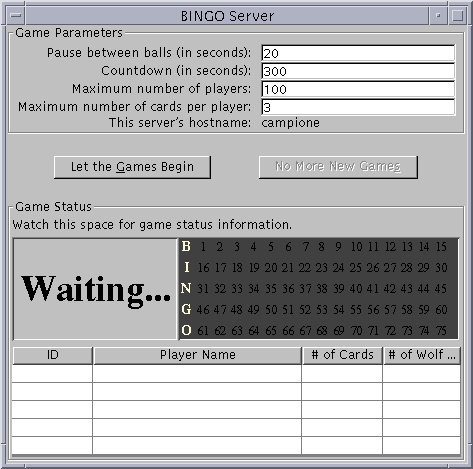
Now, run the Game application. To do this, follow the directions outlined in Getting Started with Swing
If you are using JDK 1.2, the program won't run as is because of differences in security between JDK 1.2 and 1.1. For 1.2, you need to grant certain permissions to the game application. For convenience and testing purposes, but not for real-world use, we provide a permissive policy file, bingo.policy, that grants permisson to code from anywhere to do anything. To run the game application under JDK 1.2 with this permissive policy file, specify its use on the command line as follows:
The file must be in the same directory as thejava -Djava.security.policy=bingo.policy bingo.game.BINGObingodirectory as follows.source directory | +-----+-------+ | | bingo bingo.policy | +------+--------+ | | | game player sharedIf all goes well, you will see this window displayed on your screen:
This figure has been reduced to fit on the page.
Click the image to view it at its natural size.
Step 4: Start the Games
To start the games rolling:The Game will continually serve up games until you stop them by clicking the No More New Games button (or kill the Game process). This button just tells the Game not to start any more games after the current game is finished. Pushing this button will not stop the current game.
- Enter the number of seconds the game should pause between calling balls. If you want a fast game with one card, 3 seconds works well. Add a couple of seconds for each additional card. If many players are playing consider using 10 - 20 seconds.
- After the first player registers, the Game begins a count down. During the countdown period other players can register for this game. After the countdown period expires the game begins and registration closes for this game. Enter how long the countdown period should last. If you're playing alone, use 10 seconds so that there's enough time for the CardWindow to appear after the Player has joined the game.
- Enter the maximum number of players allowed to play in a single game.
- Enter the maximum number of cards each player is allowed to play in a single game.
- Push the Let the Games Begin button.
Step 5: Run the Player
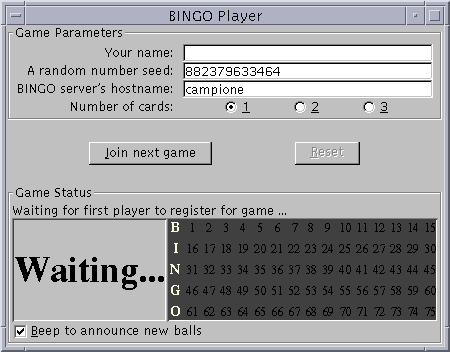
Now run the Player and instruct your friends to run the Player as well. The Player also uses Swing components, so you must run the Player as described in Getting Started with SwingIf all goes well, you should see this window displayed on your screen:
Step 6: Join the Next Game
To join the next game, follow these steps:
- If you want, type in your name.
- If you want, type in a different seed value. This is the value used to generate your BINGO cards. The default value is the return value from
System.currentTimeMilliswhen the window gets created. You will always play the same cards if you always use the same seed.- Type the host name where the Game is running. The Player application figures out the name of the host on which the Player application is running and enters this name in the hostname textfield. If you are running your own Game then you can just leave this value as is. If you want to play with a Game running on another machine, type the name of that machine into the text field.
- Choose the number of cards you'd like to play.
- Click the Join the Next Game button.
If you're running a Game then you should see your name appear in the player list.
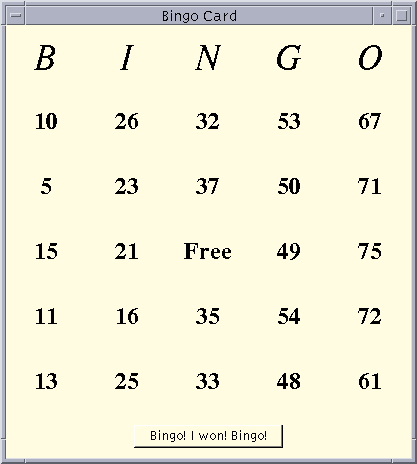
After a time, you will see one of these windows for each card you requested.
Step 7: Play
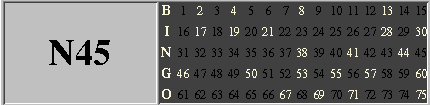
Periodically, the Game announces a BINGO ball. The current ball is displayed on the left side of the player's light board. The right side shows all of the balls that have been called in this game thus far.Mark the numbers on your card as the balls are called. When you have 5 adjacent numbers marked horizontally, vertically or diagonally, push the I Won! BINGO I Won! button. If you really won, the Game will stop the current game, and tell you that you've won. If not, the current game continues until somebody wins, or until the balls run out.
But wait! Don't push the I Won! BINGO I Won! button too often. If you "cry wolf" (push the I Won! BINGO I Won! button and don't have a winning card) three times, you're kicked out of the game. After all, that's very disruptive to the other players!
|
|
Start of Tutorial > Start of Trail > Start of Lesson | Lesson Contents |