


 |
Start of Tutorial > Start of Trail > Start of Lesson | Lesson Contents |

|
Trail: Creating a GUI with JFC/Swing |
|
Lesson: Using Swing Components |
|
Help
on searching
Search technology |
How to Use File Choosers
File choosers provide a GUI for navigating the file system, and then either choosing a file or directory from a list or entering a file name or directory name. To display a file chooser, you can either add an instance ofJFileChooser to a container,
or use the
JFileChooser API
to show a modal dialog
that contains a file chooser.
File choosers often appear within modal dialogs
because file operations can be sensitive
to changes within a program,
A JFileChooser object
only presents the GUI for choosing files.
Your program is responsible for doing something
with the chosen file,
such as opening or saving it.
Here's a snapshot of an application that brings up an open file chooser and a save file chooser:
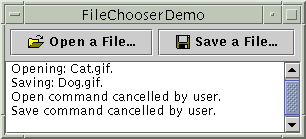
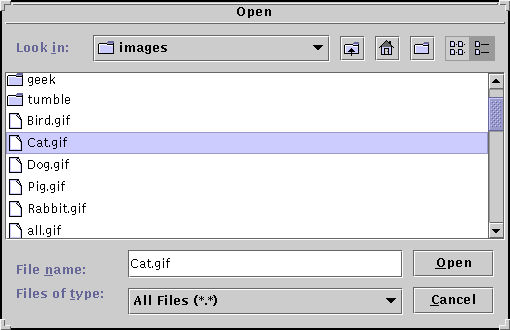
This figure has been reduced to fit on the page.
Click the image to view it at its natural size.
The look and feel determine what the open and save dialogs look like and how they differ. In the Java Look & Feel, the save file chooser looks the same as the open file chooser, except for the title on the dialog's window and the text on the button that approves the operation.
Bringing up a standard open file chooser requires only two lines of code:
Try this:
- Compile and run the program:
FileChooserDemo.java. You will also need to put two image files in a directory namedimages:open.gif, andsave.gif.
See Getting Started with Swing if you need help compiling or running this application.- Click the Open a File... button. Navigate around the file chooser, choose a file, and click the dialog's Open button.
- Use the Save a File... button to bring up a save file chooser. Try to use all of the controls on the file chooser.
The argument to the//Create a file chooser final JFileChooser fc = new JFileChooser(); ... //In response to a button click: int returnVal = fc.showOpenDialog(aComponent);
showOpenDialog method
specifies the parent component for the dialog.
The parent component affects the position of the dialog
and the frame that the dialog depends on.
For example, the Java Look & Feel places the dialog
directly over the parent component.
If the parent component is in a frame,
then the dialog is dependent on that frame,
disappearing when the frame is iconified
and reappearing when the frame is deiconified.
By default,
a file chooser that hasn't been shown before
displays all files in the user's home directory.
You can specify the file chooser's initial directory
using one of JFileChooser's other constructors,
or you can set the directory
with the setCurrentDirectory method.
The call to showOpenDialog appears in the
actionPerformed method of the Open a File...
button's action listener, shown in full here:
public void actionPerformed(ActionEvent e) {
    int returnVal = fc.showOpenDialog(FileChooserDemo.this);

    if (returnVal == JFileChooser.APPROVE_OPTION) {
        File file = fc.getSelectedFile();
        //this is where a real application would open the file.
        log.append("Opening: " + file.getName() + "." + newline);
    } else {
        log.append("Open command cancelled by user." + newline);
    }
}
showOpenDialog
methods return an integer
that indicates whether the user selected a file.
The value returned is either
CANCEL_OPTION or APPROVE_OPTION,
both constants defined by JFileChooser.
Use the return value to determine whether
to perform the required operation.
To get the chosen file,
call getSelectedFile
on the file chooser.
This method returns an instance of
File.
The example gets the name of the file and
uses it in the log message.
You can call other methods on the File object,
such as getPath,
isDirectory, or exists
to get information about the file.
You can also call other methods such as
delete and rename
to change the file in some way.
Of course, you might also want to open or save the
file using one of the reader or writer classes
provided by the JDK.
See
Reading and Writing for information about using readers and writers to
read and write data to the file system.
The example program uses the same
instance of JFileChooser
to display a standard save file chooser.
This time the program calls showSaveDialog:
By using the same file chooser instance to display its open and save file choosers, the program reaps these benefits:int returnVal = fc.showSaveDialog(FileChooserDemo.this);
- The chooser remembers the current directory between uses so the open and save versions automatically share the same current directory.
- You have to customize only one file chooser, and the customizations apply to both the open and save versions of it.
- Another Example: FileChooserDemo2
- Using a File Chooser for a Custom Task
- Filtering the List of Files
- Customizing the File View
- Providing an Accessory Component
- The File Chooser API
- Examples that Use File Choosers
Another Example: FileChooserDemo2
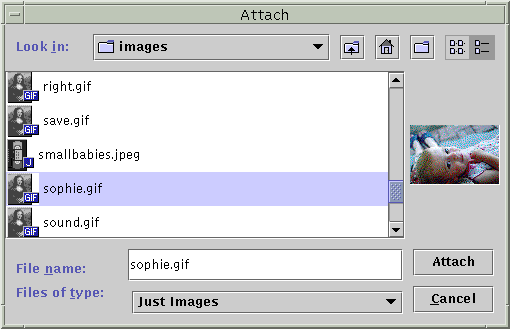
Let's look atFileChooserDemo2, a modified version of the previous demo program that uses more of theJFileChooserAPI. This example uses a file chooser that has been customized in several ways. Like the original example, the user invokes a file chooser with the push of a button. Here's a picture of the file chooser:[PENDING: add labels to point out file view, accessory, user-choosable filter, etc]
This figure has been reduced to fit on the page.
Click the image to view it at its natural size.You need several source and image files to run this example. See the examples index for links to all the files required by this example.
As the figure shows, this file chooser has been customized for a special task (attaching), provides a user-choosable file filter, uses a special file view for image files, and has an accessory component that displays a thumbnail sketch of the currently selected image file.
The remainder of this section shows you the code that creates and customizes this file chooser.


Using a File Chooser for a Custom Task
As you've seen,JFileChooserprovidesshowOpenDialogfor displaying an open file chooser andshowSaveDialogfor displaying a save file chooser.The class has another method,
showDialog, for displaying a file chooser for a custom task in a dialog. In the Java Look & Feel, the only difference between this file chooser and the others is the title on the dialog window and the label on the approve button. Here's the code fromFileChooserDemo2that brings up the file chooser dialog for the Attach task:The first argument to theJFileChooser fc = new JFileChooser(); int returnVal = fc.showDialog(FileChooserDemo2.this, "Attach");showDialogmethod is the parent component for the dialog. The second argument is aStringthat provides both the title for the dialog window and the label for the approve button.Once again, the file chooser doesn't do anything with the selected file. The program is responsible for implementing the custom task for which the file chooser was created.
Filtering the List of Files
By default, a file chooser displays all of the files and directories that it detects, except hidden files. A program can apply one or more file filters to a file chooser so that the chooser shows only some files. The file chooser calls the filter'sacceptmethod for each file to determine whether it should be displayed. A file filter accepts or rejects a file based on some criteria such as file type, size, ownership, and so on. Filters affect the list of files displayed by the file chooser. The user can enter the name of any file even if it's not displayed.
JFileChoosersupports three different kinds of filtering. The filters are checked in the order listed here. So a filter of the second type can filter only those files accepted by the first, and so on.
- Built-in filtering
- Filtering is set up through specific method calls on a file chooser. Currently the only built-in filter available is for hidden files, such as those that begin with period (.) on UNIX systems. By default, hidden files are not shown. Call
setFileHidingEnabled(false)to show hidden files.- Application-controlled filtering
- The application determines which files are shown. Create a custom subclass of
FileFiltersetFileFilter. The file chooser shows only those files that the filter accepts.- User-choosable filtering
- The file chooser GUI provides a list of filters that the user can choose from. When the user chooses a filter, the file chooser shows only those file accepted by that filter.
FileChooserDemo2adds a custom file filter to the list of user-choosable filters:The custom file filter is implemented infc.addChoosableFileFilter(new ImageFilter());ImageFilter.javaand is a subclass ofFileFilter. TheImageFilterclass implements thegetDescriptionmethod to return a string to put in the list of user-choosable filters.ImageFilterimplements theacceptmethod to accept all directories and any file that has a.jpg,.jpeg,.gif,.tif, or.tifffilename extension.By accepting all directories, this filter allows the user to navigate around the file system. If the bold lines were omitted from this method, the user would be limited to the directory with which the chooser was initialized.public boolean accept(File f) { if (f.isDirectory()) { return true; } String extension = Utils.getExtension(f); if (extension != null) { if (extension.equals(Utils.tiff) || extension.equals(Utils.tif) || extension.equals(Utils.gif) || extension.equals(Utils.jpeg) || extension.equals(Utils.jpg)) { return true; } else { return false; } } return false; }The preceding code sample uses the
getExtensionmethod and several string constants fromUtils.java, shown here:public class Utils { public final static String jpeg = "jpeg"; public final static String jpg = "jpg"; public final static String gif = "gif"; public final static String tiff = "tiff"; public final static String tif = "tif"; /* * Get the extension of a file. */ public static String getExtension(File f) { String ext = null; String s = f.getName(); int i = s.lastIndexOf('.'); if (i > 0 && i < s.length() - 1) { ext = s.substring(i+1).toLowerCase(); } return ext; } }
Customizing the File View
In the Java Look & Feel, the chooser's list shows each file's name and displays a small icon that represents whether the file is a true file or a directory. You can customize this file view by creating a custom subclass ofFileViewsetFileView. The example uses an instance of a custom class, implemented inImageFileView.java, as the file chooser's file view.fc.setFileView(new ImageFileView());ImageFileViewshows a different icon for each type of image accepted by the image filter described previously.The
ImageFileViewclass overrides the five abstract methods defined inFileViewas follows. Note that some of these methods callgetExtension, which is a private method toImageFileView.
String getTypeDescription(File f)- Returns a description of the file type. This is not yet used by any look and feel. The intent is to provide information about the file's type. Here is
ImageFileView's implementation of this method:public String getTypeDescription(File f) { String extension = Utils.getExtension(f); String type = null; if (extension != null) { if (extension.equals(Utils.jpeg) || extension.equals(Utils.jpg)) { type = "JPEG Image"; } else if (extension.equals(Utils.gif)){ type = "GIF Image"; } else if (extension.equals(Utils.tiff) || extension.equals(Utils.tif)) { type = "TIFF Image"; } } return type; }Icon getIcon(File f)- Returns an icon representing the file or its type. Here is
ImageFileView's implementation of this method:public Icon getIcon(File f) { String extension = Utils.getExtension(f); Icon icon = null; if (extension != null) { if (extension.equals(Utils.jpeg) || extension.equals(Utils.jpg)) { icon = jpgIcon; } else if (extension.equals(Utils.gif)) { icon = gifIcon; } else if (extension.equals(Utils.tiff) || extension.equals(Utils.tif)) { icon = tiffIcon; } } return icon; } }String getName(File f)- Returns the name of the file. Most implementations of this method should return
nullto indicate that the look and feel should figure it out. Another common implementation returnsf.getName().
String getDescription(File f)- Returns a description of the file. This is not yet used by any look and feel. The intent is to describe individual files more specifically. A common implementation of this method returns
nullto indicate that the look and feel should figure it out.
Boolean isTraversable(File f)- Returns whether a directory is traversable. Most implementations of this method should return
nullto indicate that the look and feel should figure it out. Some applications might want to prevent users from descending into a certain type of directory because it represents a compound document. TheisTraversablemethod should never returntruefor a non-directory.
Providing an Accessory Component
The customized file chooser inFileChooserDemo2has an accessory component. If the currently selected item is a JPEG, TIFF, or GIF image, the accessory component displays a thumbnail sketch of the image. Otherwise, the accessory component is empty. Aside from a previewer, probably the most common use for the accessory component is a panel with more controls on it -- say, checkboxes that toggle some features.The example calls the
setAccessorymethod to establish an instance of theImagePreviewclass, implemented inImagePreview.java, as the chooser's accessory component:Any object that inherits fromfc.setAccessory(new ImagePreview(fc));JComponentcan be an accessory component. The component should have a preferred size that looks good in the file chooser.The file chooser fires a property change event when the user selects an item in the list. So, a program with an accessory component must register to receive these events to update the accessory component whenever the selection changes. In the example, the
ImagePreviewobject itself registers for these events. This keeps all the code related to the accessory component together in one class.Here is the example's implementation of the
propertyChangemethod, which is the method called when a property change event is fired:If//where member variables are declared File file = null; ... public void propertyChange(PropertyChangeEvent e) { String prop = e.getPropertyName(); if (prop.equals(JFileChooser.SELECTED_FILE_CHANGED_PROPERTY)) { file = (File) e.getNewValue(); if (isShowing()) { loadImage(); repaint(); } } }SELECTED_FILE_CHANGED_PROPERTYis the property that changed, this method gets aFileobject from the file chooser. TheloadImageandrepaintmethods use theFileto load the image and repaint the accessory component.
The File Chooser API
The API for using file choosers falls into these categories:
- Creating and Showing the File Chooser
- Selecting Files and Directories
- Navigating the File Chooser's List
- Customizing the File Chooser
Creating and Showing the File Chooser Method Purpose JFileChooser()
JFileChooser(File)
JFileChooser(String)Create a file chooser instance. The FileandStringarguments, when present, provide the initial directory.int showOpenDialog(Component)
int showSaveDialog(Component)
int showDialog(Component, String)Show a modal dialog containing the file chooser. These methods return APPROVE_OPTIONif the user approved the operation andCANCEL_OPTIONif the user cancelled it.
Selecting Files and Directories Method Purpose void setSelectedFile(File)
File getSelectedFile()Set or get the currently selected file. void setSelectedFiles(File[])
File[] getSelectedFiles()Set or get the currently selected files. Multiple selection is not yet implemented by any look and feel. Calling these methods might produce unpredictable results. void setFileSelectionMode(int)
int getFileSelectionMode()
boolean isDirectorySelectionEnabled()
boolean isFileSelectionEnabled()Set the file selection mode. Acceptable values are FILES_ONLY(the default),DIRECTORIES_ONLY, andFILES_AND_DIRECTORIES.void setMultiSelectionEnabled(boolean)
boolean isMultiSelectionEnabled()Set or get whether multiple files can be selected at once. By default, a user can choose only one file. Multiple selection is not yet implemented by any look and feel.
Navigating the File Chooser's List Method Purpose void ensureFileIsVisible(File)Scroll the file chooser's list such that the indicated file is visible. void setCurrentDirectory(File)
File getCurrentDirectory()Set or get the directory whose files are displayed in the file chooser's list. void changeToParentDirectory()Change the list to display the current directory's parent. void rescanCurrentDirectory()Check the file system and update the chooser's list.
Customizing the File Chooser Method Purpose JComponent getAccessory()
void setAccessory(JComponent)Set or get the file chooser's accessory component. void setFileFilter(FileFilter)
FileFilter getFileFilter()Set or get the file chooser's primary file filter. void setFileView(FileView)
FileView getFileView()Set or get the chooser's file view. FileFilter[] getChoosableFileFilters()
void setChoosableFileFilters(FileFilter[])
void addChoosableFileFilter(FileFilter)
boolean removeChoosableFileFilter(FileFilter)
void resetChoosable(FileFilter)
FileFilter getAcceptAllFileFilter()Set, get, or modify the list of user-choosable file filters. void setFileHidingEnabled(boolean)
boolean isFileHidingEnabled()Set or get whether hidden files are displayed.
Examples that Use File Choosers
This table shows the examples that useJFileChooserand where those examples are described.
Example Where Described Notes FileChooserDemoThis section Displays an open file chooser and a save file chooser. FileChooserDemo2This section Uses a file chooser with custom filtering, a custom file view, and an accessory component.
|
|
Start of Tutorial > Start of Trail > Start of Lesson | Lesson Contents |