


 |
Start of Tutorial > Start of Trail > Start of Lesson | Lesson Contents |

|
Trail: Creating a GUI with JFC/Swing |
|
Lesson: Using Swing Components |
|
Help
on searching
Search technology |
How to Use Root Panes
In general, you don't directly create aJRootPane object.
Instead, you get a
JRootPane
(whether you want it or not!)
when you instantiate
JInternalFrame or
one of the top-level Swing containers,
such as
JApplet,
JDialog, and
JFrame.
Using Top-Level Containers tells you the basics of using root panes -- getting the content pane, setting its layout manager, and adding Swing components to it. This section tells you more about root panes, including the components that make up a root pane and how you can use them. Another place to get information about root panes is The Swing Connection, especially the article Understanding Containers.

- The glass pane
- Hidden, by default.
If you make the glass pane visible,
then it's like a sheet of glass over
all the other parts of the root pane.
It's completely transparent
unless you implement the glass pane's
paintmethod so that it does something, and it intercepts input events for the root pane. In the next section, you'll see an example of using a glass pane. - The layered pane
- Serves to position its contents, which consist of the content pane and the optional menu bar. Can also hold other components in a specified Z order. For information, see The Layered Pane.
- The content pane
- The container of the root pane's visible components, excluding the menu bar. For information on using the content pane, see Using Top-Level Containers.
- The optional menu bar
- The home for the root pane's container's menus.
If the container has a menu bar,
you generally use the container's
setJMenuBarmethod to put the menu bar in the appropriate place. For more information on using menus and menu bars, see How to Use Menus.
The Glass Pane
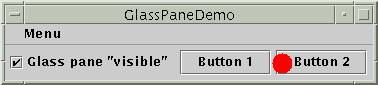
The glass pane is useful when you want to be able to catch events or paint over an area that already contains one or more components. For example, you can deactivate mouse events for a multi-component region by having the glass pane intercept the events. Or you can display an image over multiple components using the glass pane.Here's a picture of an application that demonstrates glass pane features. It contains a check box that lets you set whether the glass pane is "visible" -- whether it can get events and paint itself onscreen. When the glass pane is visible, it blocks all input events from reaching the components in the content pane. It also paints a red dot in the place where it last detected a mouse-pressed event.
Try this:
- Compile and run the application. The source file is
GlassPaneDemo.java.
See Getting Started with Swing if you need help compiling or running this application.- Click Button 1.
The button's appearance changes to show that it's been clicked.- Click the check box so that the glass pane becomes "visible," and then click Button 1 again.
The button does not detect the mouse-pressed event because the glass pane intercepts it. When the glass pane detects the event, it beeps and paints a red circle where you clicked.- Click the check box again so that the glass pane is hidden.
When the root pane detects an event over the check box, it forwards it to the check box. Otherwise, the check box would not respond to clicks.The following code from
GlassPaneDemo.javashows and hides the glass pane. This program happens to create its own glass pane, setting it using theJFramesetGlassPanemethod. However, if a glass pane doesn't do any painting, the program might simply attach listeners to the default glass pane, as returned bygetGlassPane....//where GlassPaneDemo's UI is initialized: JCheckBox changeButton = new JCheckBox("Glass pane \"visible\""); changeButton.setSelected(false); changeButton.addItemListener(new ItemListener() { public void itemStateChanged(ItemEvent e) { myGlassPane.setVisible(e.getStateChange() == ItemEvent.SELECTED); } });The next code snippet implements the mouse-event handling for the glass pane. If a mouse event occurs over the check box or menu bar, then the glass pane redispatches the event so that the check box or menu component receives it. So that the check box and menu behave properly, they also receive all drag events that started with a press in the button or menu bar.
Here is the code that implements the painting for the glass pane:...//In the implementation of the glass pane's mouse listener: public void mouseMoved(MouseEvent e) { redispatchMouseEvent(e, false); } .../* The mouseDragged, mouseClicked, mouseEntered, * mouseExited, and mousePressed methods have the same * implementation as mouseMoved*/... public void mouseReleased(MouseEvent e) { redispatchMouseEvent(e, true); inDrag = false; } private void redispatchMouseEvent(MouseEvent e, boolean repaint) { boolean inButton = false; boolean inMenuBar = false; Point glassPanePoint = e.getPoint(); Component component = null; Container container = contentPane; Point containerPoint = SwingUtilities.convertPoint( glassPane, glassPanePoint, contentPane); int eventID = e.getID(); if (containerPoint.y < 0) { inMenuBar = true; //...set container and containerPoint accordingly... testForDrag(eventID); } component = SwingUtilities.getDeepestComponentAt( container, containerPoint.x, containerPoint.y); if (component.equals(liveButton)) { inButton = true; testForDrag(eventID); } if (inMenuBar || inButton || inDrag) { ...//Redispatch the event to component... } if (repaint) { toolkit.beep(); glassPane.setPoint(glassPanePoint); glassPane.repaint(); } } private void testForDrag(int eventID) { if (eventID == MouseEvent.MOUSE_PRESSED) { inDrag = true; } }...//where GlassPaneDemo's UI is initialized: myGlassPane = new MyGlassPane(...); frame.setGlassPane(myGlassPane); ... /** * We have to provide our own glass pane so that it can paint. */ class MyGlassPane extends JComponent { Point point = null; public void paint(Graphics g) { if (point != null) { g.setColor(Color.red); g.fillOval(point.x - 10, point.y - 10, 20, 20); } } ... }
The Layered Pane
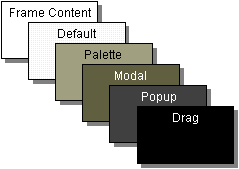
A root pane places its menu bar and content pane in an instance ofJLayeredPane--a container with depth--such that overlapping components can appear one on top of the other. This is useful for displaying popup menus above other components, for example. Your programs can also put components in the root pane's layered pane. If you do, then you should be aware that certain depths are defined to be used for specific functions, and you should use the depths as intended. Otherwise, your components might not play well with the others. Here's a diagram that shows the functional layers and their relationship:The table below describes the intended use for each layer and the named constant defined in the JLayeredPaneclass that corresponds to it:This tutorial does not provide an example of using the root pane's layered pane. However, by modifying a few lines of code in the example described in How to Use Layered Panes, you can make the program use the root pane's layered pane instead of creating one. The left column in this table shows the code as it appears in
Layer Name Value Description FRAME_CONTENT_LAYERnew Integer(-30000)This layer is used to position the frame's content pane and menu bar. Most programs won't use this. The root pane adds the menu bar and content pane to its layered pane at this depth. DEFAULT_LAYERnew Integer(0)Most components go in this layer. If you don't specify a component's depth, the layered pane puts it at this depth. PALETTE_LAYERnew Integer(100)This layer is useful for floating toolbars and palettes. MODAL_LAYERnew Integer(200)Modal internal-frame dialogs would belong in this layer. [PENDING: check] POPUP_LAYERnew Integer(300)Popups go in this layer because they need to appear above just about everything. DRAG_LAYERnew Integer(400)Move a component to this layer when dragging. Return the component to its regular layer when dropped. LayeredPaneDemo.java. The right column shows how to change it:
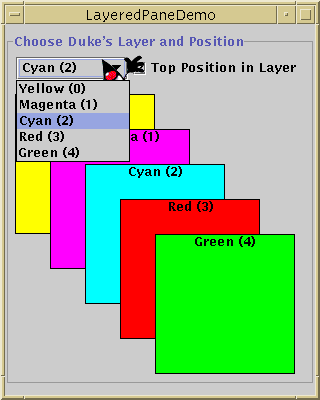
From... To... layeredPane = new JLayeredPane();layeredPane = getLayeredPane();final int YFUDGE = 57;final int YFUDGE = 27;Point origin = new Point(10, 20);Point origin = new Point(10, 70);contentPane.add(layeredPane);//contentPane.add(layeredPane);frame.pack();frame.setSize(new Dimension(350, 400));Because the program now uses the root pane's layered pane, the Duke label can be dragged all around inside the window and over the components in the control panel. What do you suppose happens when you bring up the combo box? Will Duke be under the combo box's menu or over it?
[PENDING: could probably cut the bottom half of this screen shot off.] Notice that the layered pane's mouse listener is not notified of events when the mouse is over the combo box or the checkbox.
The Root Pane API
The tables that follow list the API for using root panes, glass panes, and content panes. For more information on using content panes, go to Using Top-Level Containers. Here are the tables in this section:The API for using other parts of the root pane is described elsewhere:
Using a Root Pane Method Purpose JRootPane getRootPane()
(inJApplet,JDialog,JFrame,JInternalFrame, andJWindow)Get the root pane of the applet, dialog, frame, internal frame, or window. JRootPane SwingUtilities.getRootPane(Component)If the component contains a root pane, returns that root pane. Otherwise, returns the root pane (if any) that contains the component. JRootPane getRootPane()
(inJComponent)Invokes the SwingUtilitiesgetRootPanemethod on theJComponent.void setDefaultButton(JButton)
JButton getDefaultButton()Set or get which button (if any) is the default button in the root pane. A look-and-feel-specific action, such as pressing Enter, causes the button's action to be performed.
Setting or Getting the Glass Pane Method Purpose setGlassPane(Component)
Component getGlassPane()
(inJApplet,JDialog,JFrame,JInternalFrame,JRootPane, andJWindow)Sets or gets the glass pane.
Setting or Getting the Content Pane Method Purpose setContentPane(Container)
Container getContentPane()
(inJApplet,JDialog,JFrame,JInternalFrame,JRootPane, andJWindow)Set or get the content pane.
Examples that Use Root Panes
Every Swing program has a root pane, but few reference it directly. The examples in the following list illustrate how to use features ofJRootPaneor the glass pane. Also see these lists:
- Examples that Use Layered Panes
- Examples that Use Menus
- Examples that Use Frames (for examples of using content panes)
Example Where Described Notes GlassPaneDemoThis section Uses a glass pane. Redispatches events. ListDialogHow to Use a BoxLayout Sets the default button for a top-level container, using the root pane's setDefaultButtonmethod.AppletDemoHow to Make Applets Sets a property on the root pane, to try to avoid a security check that can cause disturbing messages in the console in JDK 1.1.

|
|
Start of Tutorial > Start of Trail > Start of Lesson | Lesson Contents |