


 |
Start of Tutorial > Start of Trail > Start of Lesson | Lesson Contents |

|
Trail: Creating a GUI with JFC/Swing |
|
Lesson: Converting to Swing |
|
Help
on searching
Search technology |
Some Conversion Examples
This section provides the AWT and Swing versions of several example programs and talks about the interesting aspects of the conversion. Here is an overview of each program:-
ButtonDemoApplet - A simple applet that uses three buttons. In our conversion, we added mnemonics and icons.
-
AnimatorApplication - An application that uses custom painting to perform a simple animation.
Our first conversion just made the application work.
The second pass made the application use Swing features
such as the
JLabelandTimerclasses. -
TextEventDemo - An applet that illustrates using listeners on text components. We added no new features during this conversion.
-
Converter - An application that converts distance measurements between U.S. and metric.
We made many changes in this program,
taking advantage of Swing features
such as data models, borders, and
BoxLayout. -
ListDemo - An application to demonstrate the use of lists. The conversion was fairly straightforward, but again we did more than necessary. We took advantage of some new Swing features, including tables, split panes, and models.
diff
utility to compare both versions of the source code.
Converting ButtonDemoApplet
The first AWT-to-Swing conversion example we'll look at is a simple applet that contains three buttons. The first snapshot shows the AWT version of the applet running. The second shows the Swing version.
AWT version (Win32 platform)
This is a picture of the applet's GUI. To run the applet, click the picture. The applet will appear in a new browser window.Swing version (any platform; Java Look & Feel)
You'll notice that the programs look different:
- The button edges are different. In the AWT version, running on Win32, the buttons appear raised. In the Swing version, which uses the Java Look & Feel, the button edges appear etched.
- The button font is different.
- The buttons in the Swing applet have icons as well as text.
- The buttons in the Swing applet have underlined letters, which lets the user know the mnemonic for each button.
- The Swing applet is bigger.
The first two differences exist simply because the Win32 AWT implementation and the Java Look & Feel used by the Swing program draw buttons differently and have different default fonts. The Java Look & Feel is the default look and feel, which works on all platforms. However, your program or the user can specify another preference.
Differences 3 and 4 exist because we chose to take advantage of two Swing button features not supported by AWT buttons: images and mnemonics.
The final difference -- increased applet size -- is a side effect of the previous four differences. To allow space for the Swing applet, we had to modify the <APPLET> tag. We used Applet Viewer to test the results, making sure that the applet displayed and worked properly. After we were satisfied with the <APPLET> tag, we ran an HTML converter to generate the corresponding <OBJECT> and <EMBED> tags required by Java Plug-in.
Although the programs look somewhat different, they behave the same. When you click the left button, it disables the middle button and itself, and enables the right button. When you click the right button, it disables itself, and enables the middle and left buttons.
The following table links to the complete source code and an HTML file containing a sample <APPLET> tag for each version of the program. Compare the code and the <APPLET> tags to see the differences between the two programs.
* Note that if your browser isn't configured to run 1.1 or Swing programs, visiting the
Source Code <APPLET>Tag *AWT ButtonDemoApplet.javaButtonDemoApplet.htmlSwing ButtonDemoApplet.java
left.gif
middle.gif
right.gifButtonDemoApplet.atag.htmlfiles listed in the table will produce errors. We provide the files so that you can look at the applet tags. Use shift-click to download the files.For a slightly more sophisticated Swing version of
ButtonDemoAppletthat works as either an applet or an application, seeAppletDemo.java.


Converting AnimatorApplication
AnimatorApplicationis a template for animation programs. This particular implementation "animates" a string by changing the string periodically. The program can be easily modified to animate images in the same manner.This section discusses two different solutions to converting the animator program. The first solution takes a minimalistic approach--the code is changed only as necessary to get the program to run with Swing. The second solution is more complete--it changes the code to adjust for differences in the way the AWT and Swing programs paint and to take advantage of the Swing timer support.
The AWT
AnimatorApplicationclass extendsFrame. Itspaintmethod usesdrawStringto paint a string in the frame. A thread periodically wakes up, changes the string to the next value, and repaints the frame.Both Swing versions of the
AnimatorApplicationclass extendJFrame.The minimalist version of the program paints the same way the AWT version paints--by calling the
drawStringmethod. However in Swing the painting code belongs in a method namedpaintComponent. Furthermore, because aJFramehas a content pane, the painting done in itspaintComponentmethod has no effect (the content pane just paints right over it). So the painting code must move out of the frame. Instead, the program defines aJPanelsubclass,AnimappPanel, to do the painting, and uses an instance ofAnimappPanelas theJFrame's content pane.The second solution is a more complete Swing solution. Instead of using a
Threadthat sleeps periodically, the second solution uses Swing'sTimerclass. Additionally, this solution uses aJLabelinstead of creating aJPanelsubclass to draw a string. Replacing the custom component with a label isn't essential for this program, but it is something you might well do in your own programs.Here are the three different versions to compare:
Source Code AWT AnimatorApplication.javaMinimalist Swing Solution AnimatorApplication.java
More Complete Swing Solution AnimatorApplicationTimer.java
Converting TextEventDemo
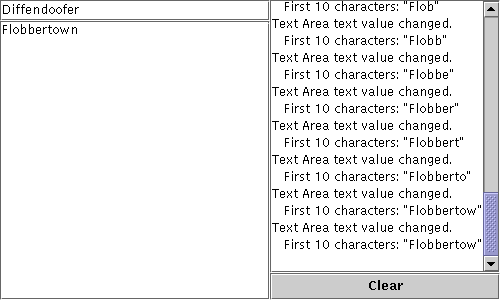
Here's the Swing version of theTextEventDemoapplet. The AWT version looks similar.This program has a text field and a text area on the left, both of which are editable. The program listens for changes to the text on the text field and the text area and logs changes in the uneditable text area on the right.
This is a picture of the applet's GUI. To run the applet, click the picture. The applet will appear in a new browser window.AWT text areas support scrolling directly. Swing text areas don't. So the Swing version of this example creates a
JScrollPanefor each text area. The program uses aGridBagLayoutto position the components. During the first pass of the conversion, we forgot to change thesetConstraintscall to set the constraints on the scroll pane instead of the text area and ended up with a tiny little scroll pane.The AWT version of this program registers a text listener with
addTextListenerto listen for changes on the text components. The text listener implements a single method calledtextValueChanged.Swing text components do not have an
addTextListenermethod. Instead, the Swing version of this program has to register a document listener on each text component's document. A document listener implements three methods:insertUpdate,removeUpdate, andchangedUpdate. These methods allow a program to listen for specific types of changes.Here's the code and <APPLET> tags to compare:
* Note that if your browser isn't configured to run 1.1 or Swing programs, visiting the
Source Code <APPLET>Tag *AWT TextEventDemo.javaTextEventDemo.htmlSwing TextEventDemo.javaTextEventDemo.atag.htmlfiles listed in the table will produce errors. We provide the files so that you can look at the applet tags. Use shift-click to download the files.
Converting Converter
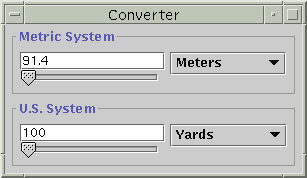
TheConverteris an application that converts distance measurements between metric and U.S. units. Here are snapshots of the AWT and Swing versions of the program:
AWT Converter Swing Converter 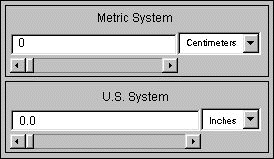
Here's the source code for both versions:
AWT Converter Source Swing Converter Source Converter.java
ConversionPanel.java
Unit.javaConverter.java
ConversionPanel.java
Unit.java
ConverterRangeModel.java
FollowerRangeModel.java
DecimalField.java
FormattedDocument.javaThe
mainmethod for both versions is in theConverterclass. Both versions use two instances ofConversionPanel--one for the metric system controls and one for the U.S. system controls. TheConverterprogram keeps several instances ofUnit, each of which contains a multiplier for a particular conversion.The Swing version of the program has four additional classes. These provide custom data models for the text fields and the sliders.
The Anatomy of a Swing-Based program
dissects the Swing version of the
Converterprogram. Read that section to familiarize yourself with the program before proceeding.The Swing version of this program takes advantage of the Swing API and improves upon the AWT version in these ways:
- Draws a line border around and provides a text label for each
ConversionPanelwith a titled border. In the AWT version, theConversionPanelhas to draw its own line border and uses an AWTLabelfor the panel's label.- Uses a custom document for the text fields that ensures that the user enters only valid data. In the AWT version, the user can enter invalid data, such as characters, into the text fields.
- Provides a custom data model to contain the current value. This ensures that the current value for the program is kept in only one place.
- Uses Swing's
BoxLayoutclass to lay out the components within eachConversionPanel. This makes the layout code simpler, compared to the code for the layout manager previously used (GridBagLayout).
Converting ListDemo
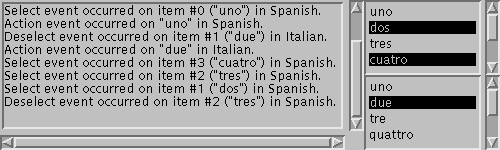
Let's look at our final conversion example, converting a program that uses lists. The AWT version of this example is fairly simple. Here's its GUI:This applet contains two lists, one that allows single selection and one that allows multiple, discontiguous selections.
This figure has been reduced to fit on the page.
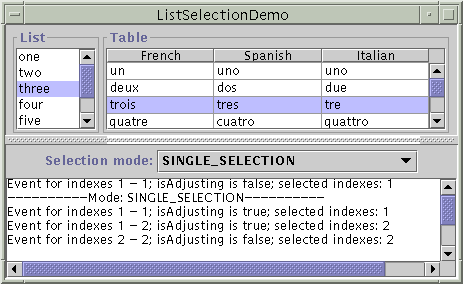
Click the image to view it at its natural size.When converting this program, we got a little carried away. Rather than doing a basic conversion, we decided to show off the power of Swing's model-view split. The Swing version of the program can be run as an application and is shown here:
This program contains a single list alongside a table. The list and the table share a list selection model. Thus, selecting an item in the list selects the corresponding row in the table, and vice versa. Furthermore, this program lets the user change the selection mode dynamically.
This figure has been reduced to fit on the page.
Click the image to view it at its natural size.
* Note that if your browser isn't configured to run 1.1 or Swing programs, visiting the
Source Code HTML Code * AWT ListDemo.javaListDemo.htmlSwing ListSelectionDemo.javaNone (implemented as an application) .htmlfiles listed in the table will produce errors. We provide the files so that you can look at the applet tags. Use shift-click to download the files.Not leaving well enough alone, we modified
ListSelectionDemoso that, in addition to sharing the selection model, the list and table share the same data model. This new example is calledSharedModelDemo. You can find its code inSharedModelDemo.java.


|
|
Start of Tutorial > Start of Trail > Start of Lesson | Lesson Contents |