


 |
Start of Tutorial > Start of Trail > Start of Lesson | Lesson Contents |

|
Trail: Creating a GUI with JFC/Swing |
|
Lesson: Laying Out Components Within a Container |
|
Help
on searching
Search technology |
Using Layout Managers
Every container, by default, has a layout manager -- an object that implements theLayoutManager interface.*
If a container's default layout manager doesn't suit your needs,
you can easily replace it with another one.
The Java platform supplies layout managers that range from the very simple
(FlowLayout and
GridLayout)
to the special purpose
(BorderLayout and
CardLayout)
to the very flexible
(GridBagLayout and
BoxLayout).
This section gives you an overview of some layout managers that the Java platform provides, gives you some general rules for using layout managers, and then tells you how to use each of the provided layout managers. It also points to examples of using each layout manager.
General Rules for Using Layout Managers
This section answers some common questions about layout managers:
- How do you choose a layout manager?
- How do you create a layout manager, associate it with a container, and tell it to start working?
- How does the layout manager know what components it manages?
How to Use BorderLayout
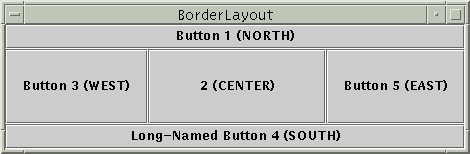
BorderLayoutis the default layout manager for every content pane. (As described in Using Top-Level Containers, the content pane is the main container in all frames, applets, and dialogs.) A
BorderLayouthas five areas available to hold components: north, south, east, west, and center. All extra space is placed in the center area. Here's an applet that puts one button in each area:
This is a picture of the applet's GUI. To run the applet, click the picture. The applet will appear in a new browser window.
How to Use BoxLayout
TheBoxLayoutclass puts components in a single row or column. It respects the components' requested maximum sizes, and also lets you align components. Here's an applet that uses aBoxLayoutto put a bunch of buttons in a centered column:
This is a picture of the applet's GUI. To run the applet, click the picture. The applet will appear in a new browser window.

How to Use CardLayout
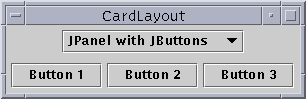
TheCardLayoutclass lets you implement an area that contains different components at different times. Tabbed panesCardLayoutis often controlled by a combo box , with the state of the combo box determining which panel (group of components) theCardLayoutdisplays. Here's an applet that uses a combo box andCardLayoutin this way:
This is a picture of the applet's GUI. To run the applet, click the picture. The applet will appear in a new browser window.
How to Use FlowLayout
FlowLayoutis the default layout manager for everyJPanel. It simply lays out components from left to right, starting new rows if necessary. Both panels in theCardLayoutapplet above useFlowLayout. Here's another example of an applet that uses aFlowLayout:
This is a picture of the applet's GUI. To run the applet, click the picture. The applet will appear in a new browser window.

How to Use GridLayout
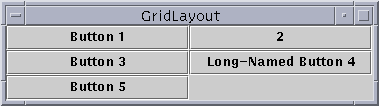
GridLayoutsimply makes a bunch of components equal in size and displays them in the requested number of rows and columns. Here's an applet that uses aGridLayoutto control the display of five buttons:
This is a picture of the applet's GUI. To run the applet, click the picture. The applet will appear in a new browser window.
How to Use GridBagLayout
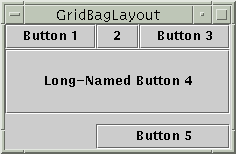
GridBagLayoutis the most sophisticated, flexible layout manager the Java platform provides. It aligns components by placing them within a grid of cells, allowing some components to span more than one cell. The rows in the grid aren't necessarily all the same height; similarly, grid columns can have different widths. Here's an applet that uses aGridBagLayoutto manage five buttons:
This is a picture of the applet's GUI. To run the applet, click the picture. The applet will appear in a new browser window.
* In JDK 1.1 a second interface,
LayoutManager2, was introduced.
LayoutManager2 extends
LayoutManager,
providing support for maximum size and alignment.
Currently, only BoxLayout implements
LayoutManager2.
All the other layout managers that we discuss implement only
LayoutManager.
|
|
Start of Tutorial > Start of Trail > Start of Lesson | Lesson Contents |