


 |
Start of Tutorial > Start of Trail > Start of Lesson | Lesson Contents |

|
Trail: Creating a GUI with JFC/Swing |
|
Lesson: Working with Graphics |
|
Help
on searching
Search technology |
Improving the Appearance and Performance of Image Animation
You might have noticed two things about the animation on the previous page:- While the images were loading, the program displayed some images partially and others not at all.
- Loading the images took a long time.
The problem of displaying partial images is easy to fix,
using the
MediaTracker class.
MediaTracker also can decrease the amount of time
that loading images takes.
Another way to deal with the problem
of slow image loading
is to change the image format somehow;
this page gives you some suggestions for doing so.
Note: TheImageIconclassprovided by Swing automatically uses a
MediaTrackerto download image data as soon as anImageIconis created. For more information, see How to Use Icons
Using MediaTracker to Download Images and Delay Image Display
TheMediaTrackerclass lets you easily download data for a group of images and find out when the images are fully loaded. Ordinarily, an image's data isn't downloaded until the image is painted for the first time. To request that the data for a group of images be preloaded asynchronously, use one of the followingMediaTrackermethods:checkID(anInt, true)orcheckAll(true). To load data synchronously (waiting for the data to arrive), use thewaitForIDorwaitForAllmethod. TheMediaTrackermethods that load data use several background threads to download the data, which can speed up downloading.To check on the status of image loading, you can use the
MediaTrackerstatusIDorstatusAllmethod. To simply check whether any image data remains to be loaded, you can use thecheckIDorcheckAllmethod.In
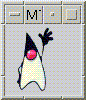
MTImageSequenceTimer.javais a modified version of the example applet that uses theMediaTrackerwaitForAllandcheckAllmethods. Until every image is fully loaded, this applet simply displays a "Please wait..." message. See theMediaTrackerAPI documentationHere is a picture of the applet:
Below is the changed code, which uses a
This is a picture of the applet's GUI. To run the applet, click the picture. The applet will appear in a new browser window.MediaTrackerto help delay image display. Differences are marked in a bold font....//Where instance variables are declared: MediaTracker tracker; tracker = new MediaTracker(this); ...//In the init method: for (int i = 1; i <= 10; i++) { images[i-1] = getImage(getCodeBase(), "images/duke/T"+i+".gif"); } ...//In the buildUI method, which is called by init and main, //allowing us to run the sample as an applet or an application: for (int i = 1; i <= 10; i++) { tracker.addImage(images[i-1], 0); } ...//At the beginning of the actionPerformed method: try { //Start downloading the images. Wait until they're loaded. tracker.waitForAll(); } catch (InterruptedException e) {} ...//In the paintComponent method: //If not all the images are loaded, just clear the background //and display a status string. if (!tracker.checkAll()) { g.clearRect(0, 0, d.width, d.height); g.drawString("Please wait...", 0, d.height/2); } //If all images are loaded, paint. else { ...//same code as before... }
Speeding Up Image Loading
Whether or not you useMediaTracker, loading images using URLs (as applets usually do) usually takes a long time. Most of the time is taken up by initiating HTTP connections. Each image file requires a separate HTTP connection, and each connection can take several seconds to initiate.The key to avoiding this performance hit is to put the images in a single file. You can do this using a JAR file, as described in Combining an Applet's Files into a Single File
and Using JAR Files: The Basics
.
Another performance strategy that might help is to combine a group of images into a single image file. One simple way to do this is to create an image strip -- a file that contains several images in a row. Here's an example of an image strip:
jack.gif:
To paint an image from the strip, you first set the painting area to the size of one image. Then you paint the image strip, shifted to the left (if necessary) so that only the image you want appears within the painting area. For example:
//imageStrip is the Image object representing the image strip.
//imageWidth is the size of an individual image in the strip.
//imageNumber is the number (from 0 to numImages) of the image to paint.
int stripWidth = imageStrip.getWidth(this);
int stripHeight = imageStrip.getHeight(this);
int imageWidth = stripWidth / numImages;
g.clipRect(0, 0, imageWidth, stripHeight);
g.drawImage(imageStrip, -imageNumber*imageWidth, 0, this);
If you want image loading to be faster still, you should look into image compression schemes, especially ones that perform interframe compression.

|
|
Start of Tutorial > Start of Trail > Start of Lesson | Lesson Contents |