


 |
Start of Tutorial > Start of Trail > Start of Lesson | Lesson Contents |

|
Trail: Security in JDK 1.2 |
|
Lesson: Quick Tour of Controlling Applets |
|
Help
on searching
Search technology |
Grant the Required Permission
To grant theWriteFile applet permission to
create and to write to the writetest file,
you must create a policy entry granting this permission.
To do so, choose
the Add Policy Entry button
in the main Policy Tool window.
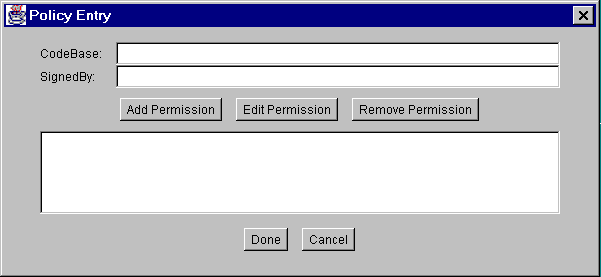
This brings up the Policy Entry dialog box,
as shown in the following figure.
This figure has been reduced to fit on the page.
Click the image to view it at its natural size.
A policy entry specifies one or more permissions for code from a particular code source - code from a particular location (URL), code signed by a particular entity, or both.
The CodeBase and the SignedBy text boxes are used to specify which code you want to grant the permission(s) you will be adding.
- A CodeBase value indicates the code source location;
you grant the permission(s)
to code from that location.
An empty CodeBase entry signifies
"any code" -- it doesn't matter where the code originates.
- A SignedBy value indicates the alias for a certificate stored in a keystore. The public key within that certificate is used to verify the digital signature on the code; you grant the permission(s) to code signed by the private key corresponding to the public key in the keystore entry specified by the alias. The SignedBy entry is optional; omitting it signifies "any signer" -- it doesn't matter whether the code is signed or by whom.
If you have both a CodeBase and a SignedBy entry, the permission(s) will be granted only to code that is both from the specified location and signed by the named alias.
To grant WriteFile the permission it needs, you can grant the
permission to all code from the location (URL) where
WriteFile.class is stored.
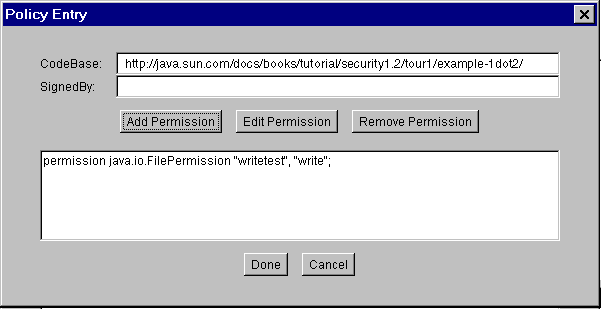
Type the following URL into the CodeBase text box of the Policy Entry dialog box:
(Note, this is a URL and thus must always have slashes, not backslashes.)http://java.sun.com/docs/books/tutorial/security1.2/tour1/example-1dot2/
Leave the SignedBy text box blank, since you aren't requiring the code to be signed.
Note: If you wanted to grant the permission to any code
(.class file) not just from the directory specified previously
but from the security1.2 directory
and its subdirectories, you'd type the
following URL into the CodeBase box:
http://java.sun.com/docs/books/tutorial/security1.2/-
You've specified where the code comes from (the CodeBase), and that the code does not have to be signed (since there's no SignedBy value). Now you are ready to grant permissions to that code.
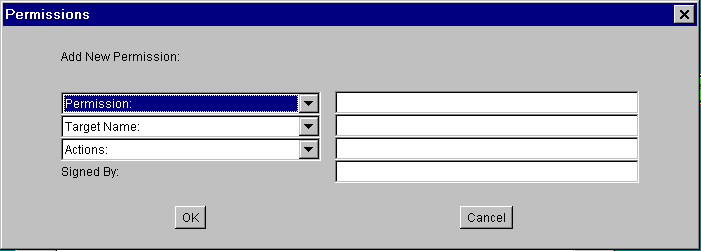
Choose the Add Permission button to bring up the Permissions dialog box.
This figure has been reduced to fit on the page.
Click the image to view it at its natural size.
writetest.
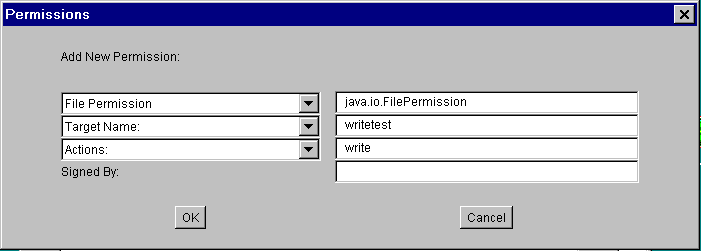
- Choose File Permission from the Permission drop-down list. The
complete permission type name (
java.io.FilePermission) now appears in the text box to the right of the drop-down list. - Type the following in the text box to the right of the list labeled
Target Name to specify the file named
writetest:writetest
- Specify write access by choosing the write option from the Actions drop-down list.
This figure has been reduced to fit on the page.
Click the image to view it at its natural size.
Choose the OK button. The new permission appears in a line in the Policy Entry dialog. So now the policy entry window looks like this.
This figure has been reduced to fit on the page.
Click the image to view it at its natural size.
You are now done specifying this policy entry, so choose the Done button in the Policy Entry dialog. The Policy Tool window now contains a line representing the policy entry, showing the CodeBase value.
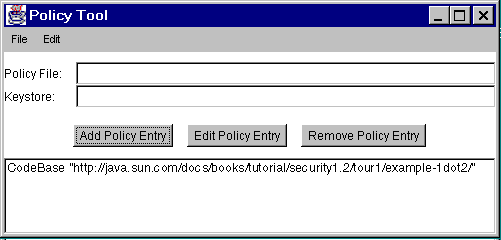
This figure has been reduced to fit on the page.
Click the image to view it at its natural size.
|
|
Start of Tutorial > Start of Trail > Start of Lesson | Lesson Contents |