


 |
Start of Tutorial > Start of Trail > Start of Lesson | Lesson Contents |

|
Trail: Creating a GUI with JFC/Swing |
|
Lesson: Using Swing Components |
|
Help
on searching
Search technology |
How to Use Lists
AJList presents the user with a group of items,
displayed in a column, to choose from.
Lists can have many items,
so they are often put in scroll panes.
Because of this,
JList is a
scrolling-savvy class.
In addition to lists, the following Swing components present multiple selectable items to the user: combo boxes, menus, tables, and groups of check boxes or radio buttons, Only tables, lists, and groups of check boxes allow multiple items to be selected at the same time.
The following figure shows an application that
uses a JList to display a list of image names.
When the user clicks on an image name,
the application displays the image.
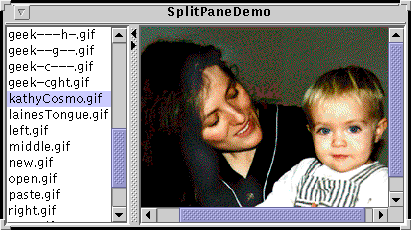
This section uses the preceding example as a basis for discussing the following topics:
Try this:
- Compile and run the application. The main source file is
SplitPaneDemo.java.imagenames.propertiesprovides the image names to put in theJList. You can check the examples index to find our image files or you can modify the properties file to use images you already have. Put the image files in a directory namedimages.- Choose an image from the list. Use the scroll bar to see more names.
- Refer to How to Use Split Panes to find out about this demo's use of a split pane.
- Working With a List's Model
- Selecting Items in a List
- Adding Items to and Removing Items from a List
- Writing a Custom Cell Renderer
- The List API
- Examples that Use Lists
Working With a List's Model
Here is the code fromSplitPaneDemo.javathat creates and sets up the list:The code passes a//...where member variables are declared: static Vector imageList; //...initialize the vector from a properties file...// ... //...where the GUI is created: // Create the list of images and put it in a scroll pane JList list = new JList(imageList); list.setSelectionMode(ListSelectionModel.SINGLE_SELECTION); ... JScrollPane listScrollPane = new JScrollPane(list);Vectorto the list's constructor. The vector is filled with strings that were read in from a properties file. Each string contains the name of an image file.Other
JListconstructors let you initialize a list from an array of objects or from an object that adheres to theListModelDefaultListModelsetModelmethod. See Adding Items to and Removing Items from a List for an example.
Selecting Items in a List
A list uses an instance ofListSelectionModelsetSelectionModemethod on the list. For example,SplitPaneDemosets the selection mode toSINGLE_SELECTION(a constant defined byListSelectionModel) so that only one item in the list can be selected. The following table describes the three list selection modes:
Mode Description Example SINGLE_SELECTIONOnly one item can be selected at a time. When the user selects an item, any previously selected item is deselected first. SINGLE_INTERVAL_SELECTIONMultiple, contiguous items can be selected. When the user begins a new selection range, any previously selected items are deselected first. MULTIPLE_INTERVAL_SELECTIONThe default. Any combination of items can be selected. The user must explicitly deselect items. No matter which selection mode your list uses, the list fires list selection events whenever the selection changes. You can process these events by adding a list selection listener to the list with the
addListSelectionListenermethod. A list selection listener must implement one method:valueChanged. Here's thevalueChangedmethod for the listener inSplitPaneDemo:Many list selection events can be generated from a single user action such as a mouse click. Thepublic void valueChanged(ListSelectionEvent e) { if (e.getValueIsAdjusting()) return; JList theList = (JList)e.getSource(); if (theList.isSelectionEmpty()) { picture.setIcon(null); } else { int index = theList.getSelectedIndex(); ImageIcon newImage = new ImageIcon("images/" + (String)imageList.elementAt(index)); picture.setIcon(newImage); picture.setPreferredSize(new Dimension( newImage.getIconWidth(), newImage.getIconHeight() )); picture.revalidate(); } }getValueIsAdjustingmethod returnstrueif the user is still manipulating the selection. This particular program is interested only in the final result of the user's action, so thevalueChangedmethod updates the image only ifgetValueIsAdjustingreturnsfalse.Because the list is in single selection mode, this code can use
getSelectedIndexto get the index of the just-selected item.JListprovides other methods for setting or getting the selection when the selection mode allows more than one item to be selected. If you want, you can listen for events on the list's list selection model rather than on the list itself. Examples of Handling List Selection Events provides an example that shows how to listen for list selection events on the list selection model and lets you change the selection mode of a list dynamically


Adding Items to and Removing Items from a List
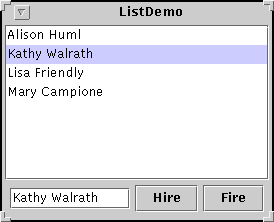
Here's an application that lets a user modify a list of employees by hiring and firing them:
Try this:
- Compile and run the application. The source file is
ListDemo.java.- Select a name from the list and click the Fire button.
- Type in a new name and click the Hire button.
ListDemothat creates a mutable list model object, puts the initial items in it, and uses the list model to create a list:This particular program uses an instance oflistModel = new DefaultListModel(); listModel.addElement("Alison Huml"); listModel.addElement("Kathy Walrath"); listModel.addElement("Lisa Friendly"); listModel.addElement("Mary Campione"); list = new JList(listModel);DefaultListModel, a class provided by Swing. In spite of the name, a list does not have aDefaultListModelunless your program explicitly makes it so. If this class doesn't suit your needs, you can write a custom list model, which must adhere to theListModelinterface. Here's theactionPerformedmethod for the action listener registered on the Fire button:The bold line of code removes the selected item in the list. The remaining lines in the method disable the fire button if the list is now empty, and make another selection.public void actionPerformed(ActionEvent e) { int index = list.getSelectedIndex(); listModel.remove(index); int size = listModel.getSize(); //Nobody's left, disable firing if (size == 0) { fireButton.setEnabled(false); //Adjust the selection } else { if (index == listModel.getSize())//removed item in last position index--; list.setSelectedIndex(index); //otherwise select same index } }Here's the
actionPerformedmethod for the action listener shared by the Hire button and the text field:This code uses the list model'spublic void actionPerformed(ActionEvent e) { //User didn't type in a name... if (employeeName.getText().equals("")) { Toolkit.getDefaultToolkit().beep(); return; } int index = list.getSelectedIndex(); int size = listModel.getSize(); //If no selection or if item in last position is selected, //add the new hire to end of list, and select new hire if (index == -1 || (index+1 == size)) { listModel.addElement(employeeName.getText()); list.setSelectedIndex(size); //Otherwise insert the new hire after the current selection, //and select new hire } else { listModel.insertElementAt(employeeName.getText(), index+1); list.setSelectedIndex(index+1); } }addElementmethod to add the new name to the end of the list if the last item in the list is selected or if there's no selection. Otherwise, the code callsinsertElementAtto insert the new name after the current selection.Whenever items are added to, removed from, or modified in a list, the list model fires list data events. Refer to How to Write a List Data Listener
for information about listening for these events. That section contains an example that is similar to
ListDemo, but adds buttons that move items up or down in the list.
Writing a Custom Cell Renderer
A list uses an object called a cell renderer to display each of its items. The default cell renderer knows how to display strings and icons. If you want to put any otherObjectin a list or if you want to change the way the default renderer display icons or strings, you can implement a custom cell renderer. Take these steps to provide a custom cell renderer for a list:We don't provide an example of a list with a custom cell renderer, but we do have an example of a combo box with a custom renderer -- and combo boxes use the same type of renderer as lists. See the example described in Providing a Custom Renderer.
- Write a class that implements the
ListCellRenderer- Create an instance of your class and call the list's
setCellRendererusing the instance as an argument.
The List API
The following tables list the commonly usedJListconstructors and methods. Other methods you are most likely to invoke on aJListobject are those such assetPreferredSizethat its superclasses provide. See The JComponent API for tables of commonly used inherited methods.Much of the operation of a list is managed by other objects. The items in the list are managed by a list model object, the selection is managed by a list selection model object, and most programs put a list in a scroll pane to handle scrolling. For the most part, you don't need to worry about the models because
JListcreates them as necessary and you interact with them implicitly withJList's convenience methods.That said, the API for using lists falls into these categories:
Setting the Items in the List Method Purpose
JList(ListModel)


    JList(Object[])


    JList(Vector)
Create a list with the initial list items specified. The second and third constructors implicitly create an immutable ListModel.void setModel(ListModel)
ListModel getModel()Set or get the model that contains the contents of the list. void setListData(Object[])
void setListData(Vector)Set the items in the list. These methods implicitly create an immutable ListModel.
Managing the List's Selection Method Purpose void addListSelectionListener(
ListSelectionListener)Register to receive notification of selection changes. void setSelectedIndex(int)
void setSelectedIndices(int[])
void setSelectedValue(Object, boolean)
void setSelectedInterval(int, int)Set the current selection as indicated. Use setSelectionModeto set what ranges of selections are acceptable. The boolean argument specifies whether the list should attempt to scroll itself so that the selected item is visible.int getSelectedIndex()
int getMinSelectionIndex()
int getMaxSelectionIndex()
int[] getSelectedIndices()
Object getSelectedValue()
Object[] getSelectedValues()Get information about the current selection as indicated. void setSelectionMode(int)
int getSelectionMode()Set or get the selection mode. Acceptable values are: SINGLE_SELECTION,SINGLE_INTERVAL_SELECTION, orMULTIPLE_INTERVAL_SELECTION(the default), which are defined inListSelectionModel.void clearSelection()
boolean isSelectionEmpty()Set or get whether any items are selected. boolean isSelectedIndex(int)Determine whether the specified index is selected.
Working with a Scroll Pane Method Purpose void ensureIndexIsVisible(int)Scroll so that the specified index is visible within the viewport that this list is in. int getFirstVisibleIndex()
int getLastVisibleIndex()Get the index of the first or last visible item. void setVisibleRowCount(int)
int getVisibleRowCount()Set or get how many rows of the list are visible.
Examples that Use Lists
This table shows the examples that useJListand where those examples are described.
Example Where Described Notes SplitPaneDemoThis section and
How to Use Split PanesContains a single selection, immutable list. ListDemoThis section Demonstrates how to add and remove items from a list at runtime. ListDialogHow to Use BoxLayout Implements a modal dialog with a single selection list. ListDataEventDemoHow to Write a List Data Listener Demonstrates listening for list data events on a list model. ListSelectionDemoHow to Write a List Selection Listener Contains a list and a table that share the same selection model. You can dynamically choose the selection mode. SharedModelDemoNowhere Modifies ListSelectionDemoso that the list and table share the same data model.CustomComboBoxDemoProviding a Custom Renderer Shows how to provide a custom renderer for a combo box. Because lists and combo boxes use the same type of renderer, you can use what you learn there an apply it to lists. In fact, a list and a combo box can share a renderer.
|
|
Start of Tutorial > Start of Trail > Start of Lesson | Lesson Contents |