


 |
Start of Tutorial > Start of Trail > Start of Lesson | Lesson Contents |

|
Trail: Creating a GUI with JFC/Swing |
|
Lesson: Using Swing Components |
|
Help
on searching
Search technology |
How to Use Split Panes
AJSplitPane displays two components,
either side by side or one on top of the other.
By dragging the divider that appears between the components,
the user can specify
how much of the split pane's total area goes to each component.
You can divide screen space among three or more components
by putting split panes inside of split panes,
as described in Nesting Split Panes.
Instead of adding the components of interest directly to a split pane, you often put each component into a scroll pane. You then put the scroll panes into the split pane. This allows the user to view any part of a component of interest, without requiring the component to take up a lot of screen space or adapt to displaying itself in varying amounts of screen space.
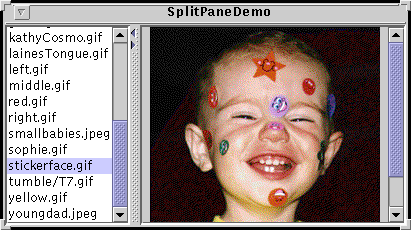
Here's a picture of an application that uses a split pane to display a list and an image side by side:
Below is the code from
Try this:
- Compile and run the application. The main source file is
SplitPaneDemo.java. This example requires some additional files. See the examples index for links to all the files required by this example. See Getting Started with Swing if you need help compiling or running this application.
This program gets the names of the images for the list from a properties resource bundle. For this demo you just need to know that the resource bundle contains a space-delimited list of file names and the program parses the list into aVector. The properties resource bundle is backed byimagenames.properties, which you need to put in the same directory as the application's class files. You can learn more about resource bundles in Isolating Locale-Specific Data.
- Drag the dimpled line that divides the list and the image to the left or right. Try to drag the divider all the way to the window's edge.
- Click the tiny arrows on the divider to hide/expand the left or right component.
SplitPaneDemo
that creates and sets up the split pane.
//Create a split pane with the two scroll panes in it.
splitPane = new JSplitPane(JSplitPane.HORIZONTAL_SPLIT,
                           listScrollPane, pictureScrollPane);
splitPane.setOneTouchExpandable(true);
splitPane.setDividerLocation(150);

//Provide minimum sizes for the two components in the split pane
Dimension minimumSize = new Dimension(100, 50);
listScrollPane.setMinimumSize(minimumSize);
pictureScrollPane.setMinimumSize(minimumSize);
JSplitPane
methods that set the components dynamically.
The split pane in this example is split horizontally--the
two components appear side by side--as
specified by the JSplitPane.HORIZONTAL_SPLIT
argument to the constructor.
Split pane provides one other option,
specified with JSplitPane.VERTICAL_SPLIT,
that places one component above the other.
You can change the split direction
after the split pane has been created with
the setOrientation method.
Two small arrows appear at the top of the divider
in the example's split pane.
These arrows let the user collapse (and then expand)
either of the components with a single click.
The current look and feel determines
whether these controls appear by default.
In the Java Look & Feel,
they are turned off by default.
The example turned them on
with a call to the setOneTouchExpandable.
The range of a split pane's divider is determined in part by the minimum sizes of the components within the split pane. See Positioning the Divider and Restricting its Range for details.
The rest of this section covers these topics:
- Setting the Components in a Split Pane
- Positioning the Divider and Restricting its Range
- Nesting Split Panes
- The Split Pane API
- Examples that Use Split Panes
Setting the Components in a Split Pane
A program can set a split pane's two components dynamically with these four methods:You can use any of these methods at any time regardless of the split pane's current split direction. Calls to
setLeftComponentsetRightComponentsetTopComponentsetBottomComponentsetLeftComponentandsetTopComponentare equivalent and set the specified component in the top or left position, depending on the split pane's current split orientation. Similarly, calls tosetRightComponentandsetBottomComponentare equivalent. These methods replace whatever component is already in that position with the new one.Like other containers,
JSplitPanesupports theaddmethod. Split pane puts the first component added in the left or top position. The danger of usingaddis that you can inadvertantly call it too many times, in which case, the split pane's layout manager will throw a rather esoteric-looking exception. If you are using theaddmethod and a split pane is already populated, you first need to remove the existing components withremove.If you put only one component in a split pane, then the divider will be stuck at the right side or the bottom of the split pane, depending on its split direction.
Positioning the Divider and Restricting Its Range
Use thesetDividerLocationmethod to position the divider programmatically. You can specify the new position by pixel or by percentage. To get the current divider location specified in pixels callgetDividerLocation.Another handy method,splitPane.setDividerLocation(150); //Set divider at pixel 150 splitPane.setDividerLocation(0.25); //25% of the space goes to left/topresetToPreferredSizes, sets the divider location such that the two components are at their preferred sizes. This is the initial arrangement of a split pane, unless specified otherwise.The user can set the divider location by dragging it. A split pane does not allow the user to make either of its components smaller than the component's minimum size by dragging the divider. So, you can affect the divider's range by setting the minimum sizes of the two components in the split pane. For example, to ensure that a minimum amount of each component in a split is visible at all times, set the minimum size of each component. To allow the user to drag the divider all the way to the edge of the split pane, use 0 for the minimum size.
If you don't set the minimum size of the two components in a split pane, then you might end up with a split pane whose divider won't move. By default, a split pane sizes its components at their preferred size, which for many components is equal to the minimum size. This means that both components are already displayed at their minimum sizes and the divider is stuck. Most programs that put standard components in a split pane need to set the minimum sizes of the components in the split pane to a smaller size.
Nesting Split Panes
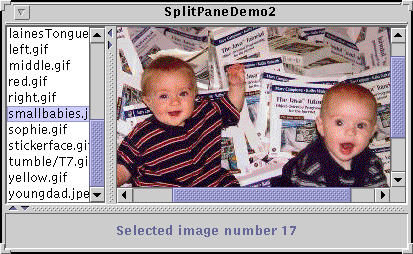
Here's a picture of a program that achieves a three-way split by nesting one split pane inside of another:If the top portion of the split pane looks familiar to you, it's because the program puts the split pane created by SplitPaneDemoinside a second split pane. A simpleJLabelis the other component in the second split pane. This is not the most practical use of a nested split pane, but it gets the point across. Here's the code, which you can find inSplitPaneDemo2.java:Refer to Solving Common Component Problems for information about fixing a border problem that can appear when nesting split panes.//Create an instance of SplitPaneDemo SplitPaneDemo splitPaneDemo = new SplitPaneDemo(); JSplitPane top = splitPaneDemo.getSplitPane(); ... //Create a regular old label label = new JLabel("Click on an image name in the list.", JLabel.CENTER); //Create a split pane and put "top" (a split pane) //and JLabel instance in it. JSplitPane splitPane = new JSplitPane(JSplitPane.VERTICAL_SPLIT, top, label);
The Split Pane API
The following tables list the commonly usedJSplitPaneconstructors and methods. Other methods you are most likely to invoke on aJSplitPaneobject are those such assetPreferredSizethat its superclasses provide. See The JComponent API for tables of commonly used inherited methods.The API for using lists falls into these categories:
Setting Up the Split Pane Method Purpose JSplitPane()
JSplitPane(int)
JSplitPane(int, boolean)
JSplitPane(int, Component, Component)
JSplitPane(int, boolean, Component, Component)Create a split pane. When present, the intparameter indicates the split pane's orientation, eitherHORIZONTAL_SPLIT(the default) orVERTICAL_SPLIT. Thebooleanparameter, when present, sets whether the components continually repaint as the user drags the split pane. If left unspecified, this option (called continuous layout) is turned off. TheComponentparameters set the initial left and right, or top and bottom components, respectively.void setOrientation(int)
int getOrientation()Set or get the split pane's orientation. Use either HORIZONTAL_SPLITorVERTICAL_SPLITdefined inJSplitPane. If left unspecified, the split pane will be horizontally split.void setDividerSize(int)
int getDividerSize()Set or get the size of the divider in pixels. void setContinuousLayout(boolean)
boolean getContinuousLayout()Set or get whether the split pane's components are continually layed out and painted while the user is dragging the divider. By default, continuous layout is turned off. void setOneTouchExpandable(boolean)
boolean getOneTouchExpandable()Set or get whether the split pane displays a control on the divider to expand/collapse the divider. The default depends on the look and feel. In the Java Look & Feel, it's off by default.
Managing the Split Pane's Contents Method Purpose void setTopComponent(Component)
void setBottomComponent(Component)
void setLeftComponent(Component)
void setRightComponent(Component)
Component getTopComponent()
Component getBottomComponent()
Component getLeftComponent()
Component getRightComponent()Set or get the indicated component. Each method works regardless of the split pane's orientation. Top and left are equivalent, and bottom and right are equivalent. void remove(Component)
void removeAll()Remove the indicated component(s) from the split pane. void add(Component)Add the component to the split pane. You can add only two components to a split pane. The first component added is the top/left component. The second component added is the bottom/right component. Attempt to add more components result in an exception.
Positioning the Divider Method Purpose void setDividerLocation(double)
void setDividerLocation(int)
int getDividerLocation()Set or get the current divider location. When setting the divider location, you can specify the new location as a percentage ( double) or a pixel location (int).
void resetToPreferredSizes()Move the divider such that both components are at their preferred sizes. This is how a split pane divides itself at startup, unless specified otherwise. void setLastDividerLocation(int)
int getLastDividerLocation()Set or get the previous position of the divider. int getMaximumDividerLocation()
int getMinimumDividerLocation()Get the minimum and maximum locations for the divider. These are set implicitly by setting the minimum sizes of the split pane's two components.
Examples that Use Split Panes
This table shows the examples that useJSplitPaneand where those examples are described.
Example Where Described Notes SplitPaneDemoThis page and How to Use Lists. Shows a split pane with a horizontal split. SplitPaneDemo2This page Puts a split pane within a split pane to create a three-way split. TreeDemoHow to Use Trees Uses a split pane with a vertical split. Does not use the one-touch expandable feature.
|
|
Start of Tutorial > Start of Trail > Start of Lesson | Lesson Contents |