


 |
Start of Tutorial > Start of Trail > Start of Lesson | Lesson Contents |

|
Trail: Creating a GUI with JFC/Swing |
|
Lesson: Using Swing Components |
|
Help
on searching
Search technology |
How to Use Panels
TheJPanel class provides general-purpose containers for lightweight components.
By default, panels don't paint anything except for their background;
however, you can easily add borders to them
and otherwise customize their painting.
For information about using panels to perform custom painting, see
Overview of Custom Painting
 .
By default, panels are opaque.
This makes them work well as content panes,
and can help painting efficiency,
as described in
Painting.
You can make a panel transparent
by invoking setOpaque(false).
A transparent panel draws no background,
so that any components underneath show through.
An Example
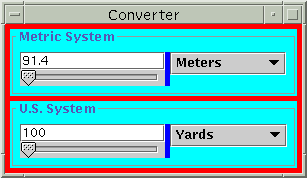
The Converter application described in The Anatomy of a Swing-Based ProgramThe following picture is the same as a picture in The Anatomy of a Swing-Based Program
- One
JPanelinstance serves as a content pane for the application's frame. This content pane uses a two-rowGridLayout- Two instances of a
JPanelsubclass, namedConversionPanel, are used to both contain components and coordinate communication between components. The panels also have titled borders, which describe their contents and paint a line around them. The panels use left-to-rightBoxLayout- Two instances of an unnamed
JPanelsubclass are used to group components and restrict their size. The panels use top-to-bottomBoxLayout[PENDING: add callouts; identical to figure in Anatomy] As the figure shows, panels are useful for grouping components, simplifying component layout, and putting borders around groups of components. The rest of this section gives hints on grouping and laying out components. For information about using borders, see How to Use Borders
Setting the Layout Manager
Like other containers, a panel uses a layout manager to position and size its components. By default, a panel's layout manager is an instance ofFlowLayoutsetLayoutmethod or specifying a layout manager when creating the panel. Here is an example of the first approach:Here is an example of setting the layout manager at instantiation:JPanel aPanel = new JPanel(); aPanel.setLayout(new BorderLayout());JPanel aPanel = new JPanel(new BorderLayout());For more information about choosing and using layout managers, see Laying Out Components Within a Container
Adding Components
When you add components to a panel, you use theaddmethod. Exactly which arguments you specify to theaddmethod depend on which layout manager the panel uses. When the layout manager isFlowLayout,BoxLayout,GridLayout, orGridBagLayout, you'll typically use the one-argumentaddmethod, like this:When the layout manager isaFlowPanel.add(aComponent); aFlowPanel.add(anotherComponent);BorderLayout, you need to provide a second argument specifying the added component's position within the panel. For example:For information on the arguments to use withaBorderPanel.add(aComponent, BorderLayout.CENTER); aBorderPanel.add(anotherComponent, BorderLayout.SOUTH);BorderLayout, see Using BorderLayout
The Panel API
The API in theJPanelclass itself is minimal. The methods you are most likely to invoke on aJPanelobject are those it inherits from its superclasses --JComponentContainerComponentJComponents can use, see The JComponent Class.
Creating a JPanelConstructor Purpose JPanel()
JPanel(LayoutManager)Create a panel. The LayoutManagerparameter provides a layout manager for the new panel. By default, a panel uses aFlowLayoutto lay out its components.
Managing a Container's Components Method Purpose void add(Component)
void add(Component, int)
void add(Component, Object)
void add(Component, Object, int)
void add(String, Component)Add the specified component to the panel. When present, the intparameter is the index of the component within the container. By default, the first component added is at index 0, the second is at index 1, and so on. TheObjectparameter is layout manager dependent and typically provides information to the layout manager regarding positioning and other layout constraints for the added component. TheStringparameter is similar to theObjectparameter.int getComponentCount()Get the number of components in this panel. Component getComponent(int)
Component getComponentAt(int, int)
Component getComponentAt(Point)
Component[] getComponents()Get the specified component or components. You can get a component based on its index or x, y position. void remove(Component)
void remove(int)
void removeAll()Remove the specified component(s).
Setting/Getting the Layout Manager Method Purpose void setLayout(LayoutManager)
LayoutManager getLayout()Set or get the layout manager for this panel. The layout manager is responsible for positioning the panel's components within the panel's bounds according to some philosophy.
Examples that Use Panels
Many examples contained in this lesson useJPanelobjects. The following table lists a few.
Example Where Described Notes Converter
and other filesThis section and The Anatomy of a Swing-Based Program Uses five panels, four of which use BoxLayoutand one of which usesGridLayout. The panels use borders and, as necessary, size and alignment hints to affect layout.ListDemoHow to Use Lists Uses a panel, with its default FlowLayoutmanager, to center three components in a row.ToolBarDemoHow to Use Toolbar Uses a panel as a content pane. The panel contains three components, laid out by BorderLayout.BorderDemoHow to Use Borders Contains many panels that have various kinds of borders. Several panels use BoxLayout.BoxLayoutDemoHow to Use BoxLayout Illustrates the use of a panel with Swing's BoxLayoutmanager.
|
|
Start of Tutorial > Start of Trail > Start of Lesson | Lesson Contents |