


 |
Start of Tutorial > Start of Trail > Start of Lesson | Lesson Contents |

|
Trail: Creating a GUI with JFC/Swing |
|
Lesson: Using Swing Components |
|
Help
on searching
Search technology |
How to Monitor Progress
Sometimes a task running within a program might take a while to complete. A user-friendly program provides some indication to the user about how long the task might take and how much work has already been done. Swing provides three classes to help you create GUIs that monitor and display the progress of a long-running task:-
JProgressBar
- A visible component to graphically display how much of a total task has completed. See How to Use Progress Bars for information and an example of using a progress bar.
-
ProgressMonitor - Not a visible component. Instead, an instance of this class monitors the progress of a task and pops up a dialog if necessary. See How to Use Progress Monitors for details and an example of using a progress monitor.
-
ProgressMonitorInputStream - An input stream with an attached progress monitor,
which monitors reading from the stream.
You use an instance of this stream like any of the other
input streams described in
Reading and Writing
 .
You can get the stream's progress monitor
with a call to
getProgressMonitorand configure it as described in How to Use Progress Monitors.
How to Use Progress Bars
Here's a picture of a small demo application that uses a progress bar to measure the progress of a task that runs in its own thread:
Try this:
- Compile and run the application. The main source file is
ProgressBarDemo.java. You will also needLongTask.javaandSwingWorker.java.
See Getting Started with Swing if you need help compiling or running this application.
Note: The tutorial's implementation of theSwingWorkerclass was updated in the January 1999 release of the tutorial; the class has been enhanced to allow programs to safely interrupt the thread. If you are usingSwingWorkerin any of your programs, make sure you are using the most up-to-date version!
- Push the Start button. Watch the progress bar as the task makes progress. The task displays its output in the text area at the bottom of the window.
ProgressBarDemo.javathat creates and sets up the progress bar:The constructor that creates the progress bar sets the progress bar's minimum and maximum values. You can also set these values with//Where member variables are declared: JProgressBar progressBar; //...in the constructor for the demo's frame: progressBar = new JProgressBar(0, task.getLengthOfTask()); progressBar.setValue(0); progressBar.setStringPainted(true);setMinimumandsetMaximum. The minimum and maximum values used in this program are 0 and the length of the task, which is typical of many programs and tasks. However, a progress bar's minimum and maximum values can be any value, even negative. The code snippet also sets the progress bar's current value to 0.The call to
setStringPaintedcauses the progress bar to display, within its bounds, a textual indication of the percentage of the task that has completed. By default, the progress bar displays the value returned by itsgetPercentCompletemethod formatted as a percent, such as 33%. Alternatively, you can replace the default with a different string by callingsetString. For example,if (/*...half way done...*/) progressBar.setString("Half way there!");You start this example's task by clicking the Start button. Once the task has begun, a timer (an instance of the
Timerclass) fires an action event every second. Here's theActionPerformedmethod of the timer's action listener:The bold line of code gets the amount of work completed by the task and updates the progress bar with that value. So this example's progress bar measures the progress made by the task each second, not the elapsed time. The rest of the code appends a message to the output log (a text area namedpublic void actionPerformed(ActionEvent evt) { progressBar.setValue(task.getCurrent()); taskOutput.append(task.getMessage() + newline); taskOutput.setCaretPosition(taskOutput.getDocument().getLength()); if (task.done()) { Toolkit.getDefaultToolkit().beep(); timer.stop(); startButton.setEnabled(true); progressBar.setValue(progressBar.getMinimum()); } }taskOutput) and, if the task is done, turns the timer off and resets the other controls.As mentioned, the long-running task in this program runs in a separate thread. Generally, it's a good idea to isolate a potentially long-running task in its own thread so that the task doesn't block the rest of the program. The long-running task is implemented by
LongTask.java, which uses aSwingWorkerto ensure that the thread runs safely. See Using the SwingWorker Class in Threads and Swing for information about theSwingWorkerclass.

How to Use Progress Monitors
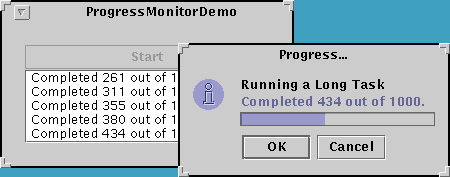
Now let's rewrite the previous example to use a progress monitor instead of a progress bar. Here's a picture of the new demo program,ProgressMonitorDemo.java:[PENDING: the dialog probably should have labels] A progress monitor cannot be used again, so a new one must be created each time a new task is started. This program creates a progress monitor each time the user starts a new task with the Start button.
Try this:
- Compile and run the application. The main source file is
ProgressMonitorDemo.java. You will also needLongTask.javaandSwingWorker.java.
See Getting Started with Swing if you need help compiling or running this application.- Push the Start button. After a certain amount of time, the program displays a progress dialog.
- Click the OK button. Note that the task continues even though the dialog is gone.
- Start another task. After the dialog pops up, click the Cancel button. The dialog goes away and the task stops.
Here's the statement that creates the progress monitor:
This code usesprogressMonitor = new ProgressMonitor(ProgressMonitorDemo.this, "Running a Long Task", "", 0, task.getLengthOfTask());ProgressMonitor's only constructor to create the monitor and initialize several arguments:After the example creates the progress monitor, it configures the monitor further:
- The first argument provides the parent component to the dialog popped up by the progress monitor.
- The second argument is a string that describes the nature of the task being monitored. This string is displayed on the dialog. see The Progress Monitoring API for details about this argument.
- The third argument is another string that provides a changeable status note. The example uses an empty string to indicate that the dialog should make space for a changeable status note, but that the note is initially empty. If you provide
nullfor this argument, the note is omitted from the dialog. The example updates the note each time the timer fires an action event. It updates the monitor's current value at the same time:progressMonitor.setNote(task.getMessage()); progressMonitor.setProgress(task.getCurrent());- The last two arguments provide the minimum and maximum values, respectively, for the progress bar displayed in the dialog.
The first line sets the current position of the progress bar on the dialog. The second tells the progress monitor to wait two seconds before deciding whether to bring up a dialog. If, after two seconds, the progress monitor's progress is less than its maximum, the monitor will bring up the dialog.progressMonitor.setProgress(0); progressMonitor.setMillisToDecideToPopup(2 * ONE_SECOND);By the simple fact that this example uses a progress monitor, it adds a feature that wasn't present in the version of the program that uses a progress bar. The user can cancel the task by clicking the Cancel button on the dialog. Here's the code in the example that checks to see if the user canceled the task or if the task exited normally:
Note that the progress monitor doesn't itself cancel the task. It provides the GUI and API to allow the program to do so easily.if (progressMonitor.isCanceled() || task.done()) { progressMonitor.close(); task.stop(); Toolkit.getDefaultToolkit().beep(); timer.stop(); startButton.setEnabled(true); }
Deciding Whether to Use a Progress Bar or a Progress Monitor
Use a progress bar if:
- You want more control over the configuration of the progress bar. If you are working directly with a progress bar, you can make it display vertically, you can provide a string for it to display, you can register change listeners on it, and you can provide it with a bounded range model to control the progress bar's minimum, maximum, and current values.
- The program needs to display other components along with the progress bar.
- You need more than one progress bar. With some tasks, you need to monitor more than one parameter. For example, an installation program might monitor disk space usage in addition to how many files have been successfully installed.
- You need to reuse the progress bar. A progress bar can be reused; a progress monitor cannot. Once the progress monitor has decided to display a dialog (or not), the progress monitor cannot do it again.
Use a progress monitor if:
If you decide to use a progress monitor and the task you are monitoring is reading from an input stream, use the
- You want an easy way to display progress in a dialog.
- The running task is secondary and the user might not be interested in the progress of the task. Progress monitor provides a way for the user to dismiss the dialog while the task is still running.
- The task can be cancelled. Progress monitor provides a GUI for the user to cancel the task. All you have to do is call progress monitor's
isCanceledmethod to find out if the user pressed the Cancel button.- Your task displays a short message periodically while running. The progress monitor dialog provides the
setNotemethod so that the task can provide further information about what it's doing. For example, an installation task might report the name of each file as it's installed.- The task might not take a long time to complete. You decide at what point a running task is taking long enough to warrant letting the user know about it. Progress monitor won't pop up a dialog if the task completes within the timeframe you set.
ProgressMonitorInputStreamclass.
The Progress Monitoring API
The following tables list the commonly used API for using progress bars and progress monitors. BecauseJProgressBaris a subclass ofJComponent, other methods you are likely to call on aJProgressBarare listed in The JComponent Class. Note thatProgressMonitoris a subclass ofObjectand is not a visual component.The API for monitoring progress falls into these categories:
- Creating the Progress Bar
- Setting or Getting the Progress Bar's Constraints/Values
- Fine Tuning the Progress Bar's Appearance
- Creating the Progress Monitor
- Configuring the Progress Monitor
- Terminating the Progress Monitor
Creating the Progress Bar Constructor Purpose JProgressBar()
JProgressBar(int min, int max)Create a horizontal progress bar. The default constructor initializes the progress bar with a minimum and initial value of 0 and a maximum of 100. Use the minandmaxarguments to specify other values.JProgressBar(int orientation)
JProgressBar(int orientation, int min, int max)Create a progress bar with the specified orientation, which can be either JProgressBar.HORIZONTALorJProgressBar.VERTICAL. Use theminandmaxarguments to specify minimum and maximum values.JProgressBar(BoundedRangeModel)Create a horizontal progress bar with the specified range model.
Setting or Getting the Progress Bar's Constraints/Values Method or Constructor Purpose void setValue(int)
int getValue()Set or get the current value of the progress bar. The value is constrained by the minimum and maximum values. double getPercentComplete()Get the percent complete for the progress bar. void setMinimum(int)
int getMinimum()Set or get the minimum value of the progress bar. void setMaximum(int)
int getMaximum()Set or get the maximum value of the progress bar. void setModel(BoundedRangeModel)
BoundedRangeModel getMaximum()Set or get the model used by the progress bar. The model establishes the progress bar's constraints and values. So you can use this method as an alternative to using the individual set/get methods listed above.
Fine Tuning the Progress Bar's Appearance Method Purpose void setOrientation(int)
int getOrientation()Set or get whether the progress bar is vertical or horizontal. Acceptable values are JProgressBar.VERTICALorJProgressBar.HORIZONTAL.void setBorderPainted(boolean)
boolean isBorderPainted()Set or get whether the progress bar has a border. void setStringPainted(boolean)
boolean isStringPainted()Set or get whether the progress bar displays a percent string. By default, the value of the percent string is the value returned by getPercentCompleteformatted as a percent. You can set the string to be displayed withsetString.void setString(String)
String getString()Set or get the percent string.
Creating the Progress Monitor Method or Constructor Purpose ProgressMonitor(Component, Object, String, int, int)Create a progress monitor. The Componentargument is the parent for the monitor's dialog. TheObjectargument is a message to put on the option pane within the dialog. The value of this object is typically aString. TheStringargument is a changeable status note. The final twointarguments set the minimum and maximum values, respectively, for the progress bar used in the dialog.ProgressMonitor getProgressMonitor()
(inProgressMonitorInputStream)Gets a progress monitor that monitors reading from an input stream.
Configuring the Progress Monitor Method Purpose void setMinimum(int)
int getMinimum()Set or get the minimum value of the progress monitor. This value is used by the monitor to set up the progress bar in the dialog. void setMaximum(int)
int getMaximum()Set or get the maximum value of the progress monitor. This value is used by the monitor to set up the progress bar in the dialog. void setProgress(int)Update the monitor's progress. void setNote(String)
String getNote()Set or get the status note. This note is displayed on the dialog. To omit the status note from the dialog, provide nullas the third argument to the monitor's constructor.void setMillisToDecideToPopup(int)
int getMillisToDecideToPopup()Set or get the time after which the monitor should decide whether to popup a dialog.
Terminating the Progress Monitor Method Purpose close()Close the progress monitor. This disposes of the dialog. boolean isCanceled()Determine whether the user pressed the Cancel button.
Examples that Monitor Progress
This table shows the examples that useJProgressBar,ProgressMonitor, orProgressMonitorInputStream, and where those examples are described.
Example Where Described Notes ProgressBarDemoThis section and How to Use Timers Uses a basic progress bar to show progress on a task running in a separate thread. ProgressMonitorDemoThis section Modification of the previous example that uses a progress monitor instead of a progress bar.
|
|
Start of Tutorial > Start of Trail > Start of Lesson | Lesson Contents |