


 |
Start of Tutorial > Start of Trail > Start of Lesson | Lesson Contents |

|
Trail: Creating a GUI with JFC/Swing |
|
Lesson: Using Other Swing Features |
|
Help
on searching
Search technology |
How to Use Actions
If you have two or more components that perform the same function, consider using anAction object to implement the function.
An
Action object is an
ActionListener that provides not only action-event handling,
but also centralized handling of the text, icon, and enabled state
of tool bar buttons or
menu items.
By adding an
Action
to a
JToolBar,
JMenu,
or
JPopupMenu,
you get the following features:
- A new
JButton(forJToolBar) orJMenuItem(forJMenuandJPopupMenu) that is automatically added to the tool bar or menu. The button or menu item automatically uses the icon and text specified by theAction. - A registered action listener (the
Actionobject) for the button or menu item. - Centralized handling of the button or menu item's enabled state.
Action
to create a tool-bar button and menu item
that perform the same function:
Action leftAction = new <a class that implements Action>(...);
JButton button = toolBar.add(leftAction);
JMenuItem menuItem = mainMenu.add(leftAction);
For a button or menu item
to get the full benefit of using an Action,
you must create the component using the
add(Action) method of
JToolBar,
JMenu,
or
JPopupMenu.
Currently, no API beyond addActionListener(ActionListener)
exists to connect an Action
to an already existing component.
For example,
although you can add an Action object
as an action listener to any button,
the button won't be notified when the action is disabled.
To create an Action object,
you generally create a subclass of
AbstractAction and then instantiate it.
In your subclass,
you must implement the actionPerformed method
to react appropriately
when the action event occurs.
Here's an example of creating and instantiating
an AbstractAction subclass:
leftAction = new AbstractAction("Go left",
                                new ImageIcon("images/left.gif")) {
    public void actionPerformed(ActionEvent e) {
        displayResult("Action for first button/menu item", e);
    }
};
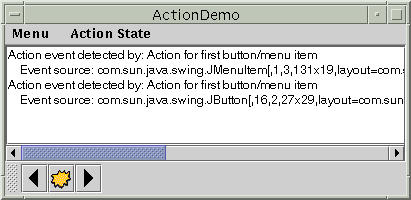
Here's a picture of a demo application that uses actions to implement three features.
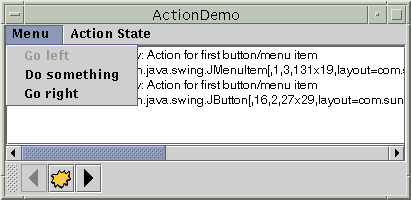
Here is what the user sees when the "Go left" action is disabled:
Try this:
- Compile and run the application. The source file is
ActionDemo.java. You will also need three image files.
See Getting Started with Swing if you need help compiling or running this application.- Choose the top item from the left menu (Menu > Go left).
The text area displays some text identifying both the event source and the action listener that received the event.- Click the leftmost button in the tool bar.
The text area again displays information about the event. Note that although the source of the events is different, both events were detected by the same action listener: theActionobject with which the components were created.- Choose the top item from the Action State menu.
This disables the "Go left"Actionobject, which in turn disables its associated menu item and button.
Here's the code that disables the "Go left" action:
boolean selected = ...//true if the action should be enabled;
                      //false, otherwise
leftAction.setEnabled(selected);
Action,
you might well need to customize them.
For example, you might want to set the tool-tip text
for a button.
Or you might want to customize the appearance of
one of the components
by adding or deleting the icon or text.
For example,
ActionDemo.java
has no icons in its menus, no text in its buttons,
and tool tips for its buttons.
Here's the code that accomplishes this:
button = toolBar.add(leftAction);
button.setText(""); //an icon-only button
button.setToolTipText("This is the left button");
menuItem = mainMenu.add(leftAction);
menuItem.setIcon(null); //arbitrarily chose not to use icon in menu
The Action API
The following tables list the commonly usedActionconstructors and methods. The API for usingActionobjects falls into two categories:
Creating and Using an Action Constructor or Method Purpose AbstractAction()
AbstractAction(String)
AbstractAction(String, Icon)Create an Actionobject. Through arguments, you can specify the text and icon to be used in the components that the action controls.void setEnabled(boolean)
boolean isEnabled()Set or get whether the components the action controls are enabled. Invoking setEnabled(false)disables all the components that the action controls. Similarly, invokingsetEnabled(true) enables the action's components.
Creating an Action-Controlled Component Method Purpose JMenuItem add(Action)
JMenuItem insert(Action, int)
(inJMenuandJPopupMenu)Create a JMenuItemobject and put it in the menu or popup menu. See the discussion in this section and in How to Use Menus for details.JButton add(Action)
(inJToolBar)Create a JButtonobject and put it in the tool bar. See the discussion in this section and in How to Use Tool Bars for details.
Examples that Use Actions
The following examples useActionobjects.
Example Where Described Notes ActionDemoThis section Uses actions to bind buttons and menu items to the same function. TextComponentDemoGeneral Rules for Using Text Components Uses text actions to create menu items for text editing commands, such as cut, copy, and paste, and to bind key strokes to caret movement. Also implements custom AbstractActionsubclasses to implement undo and redo. The text action discussion begins in Concepts: About Editor Kits.
|
|
Start of Tutorial > Start of Trail > Start of Lesson | Lesson Contents |