


 |
Start of Tutorial > Start of Trail > Start of Lesson | Lesson Contents |

|
Trail: Creating a GUI with JFC/Swing |
|
Lesson: Working with Graphics |
|
Help
on searching
Search technology |
Painting Shapes
TheGraphics class defines methods for painting
the following kinds of shapes:
- Lines (
drawLine) - Rectangles (
drawRectandfillRect) - Raised or lowered rectangles
(
draw3DRectandfill3DRect) - Round-edged rectangles
(
drawRoundRectandfillRoundRect) - Ovals
(
drawOvalandfillOval) - Arcs
(
drawArcandfillArc) - Polygons
(
drawPolygon,drawPolyline, andfillPolygon)
Here is an example of painting a filled rectangle of the same size.g.drawRect(x, y, rectWidth - 1, rectHeight - 1);
Note that for theg.fillRect(x, y, rectWidth, rectHeight);
drawRect method,
you must specify one pixel less than the desired width and height.
This is because the painting system draws lines
just below the specified rectangle,
instead of within the specified rectangle.
The same rule
of specifying one less than the desired width
applies to other drawXxx methods,
such as draw3DRect.
For the fillXxx methods,
on the other hand,
you specify exactly the desired width and height in pixels.
JavaTM 2 Note: If you are using Java 2 (JDKTM 1.2), you can use the new JavaTM 2D API, which allows you to create virtually any kind of geometric shape and to specify line styles, line sizes, and fancy fill patterns. To learn how to take advantage of this new functionality, see the 2D Graphicstrail. In particular, see the Stroking and Filling Graphics Primitives
Example 1: Simple Rectangle Painting
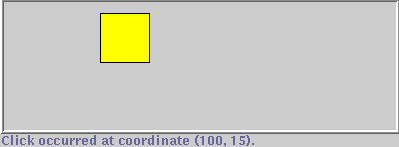
Here's a picture of a program that's almost the same as theCoordinatesDemoprogram shown in The Coordinate System. LikeCoordinatesDemo, this program paints a rectangle wherever the user clicks. However, this program's rectangle is larger and has a yellow fill. Here is a picture of its GUI:The program features two components. The largest is a custom component implemented by a class named
This is a picture of the applet's GUI. To run the applet, click the picture. The applet will appear in a new browser window.RectangleArea. It paints the beveled border and everything inside it, including the yellow rectangle. The other component is a label that appears at the bottom of the GUI, under the custom component. The label describes the program's current state.You can find the program's code in
RectangleDemo.java. Here is the painting-related code for the custom component:The component's implementation ofclass RectangleArea extends JPanel { ... int rectWidth = 50; int rectHeight = 50; ... public RectangleArea(...) { ... Border raisedBevel = BorderFactory.createRaisedBevelBorder(); Border loweredBevel = BorderFactory.createLoweredBevelBorder(); Border compound = BorderFactory.createCompoundBorder (raisedBevel, loweredBevel); setBorder(compound); ... } ... public void paintComponent(Graphics g) { super.paintComponent(g); //paint background //Paint a filled rectangle at user's chosen point. if (point != null) { g.drawRect(point.x, point.y, rectWidth - 1, rectHeight - 1); g.setColor(Color.yellow); g.fillRect(point.x + 1, point.y + 1, rectWidth - 2, rectHeight - 2); controller.updateLabel(point); } } }paintComponentuses thefillRectmethod to paint a 50-by-50-pixel rectangle outline, filled with a 48-by-48-pixel yellow rectangle. Note the differences in the arguments specified todrawRectandfillRect.For a little more information about this example, see The Coordinate System, which features the
Note: It's perfectly legal to specify x, y, height, or width values that are negative or cause a result larger than the painting area. Values outside the painting area don't matter too much because they're clipped to the painting area. You just won't see part of the shape. Negative height or width results in the shape not being painted at all.CoordinatesDemoexample on whichRectangleDemois based.
Example 2: A Shape Sampler
TheShapesDemoprogram demonstrates all the shapes you can draw and fill, using API supported with both JDK 1.1 and Java 2. Here is a picture of its GUI:
This is a picture of the applet's GUI. To run the applet, click the picture. The applet will appear in a new browser window.
Note: Unless the default font is very small, some of the strings displayed by ShapesDemo overlap with other strings. A fix for this problem is demonstrated in Getting Information About a Font: FontMetrics.You can find the code for the entire program in
ShapesDemo.java. The following snippet is just the code that paints the geometric shapes, where the bold lines are the actual invocations of painting methods. TherectHeightandrectWidthvariables specify the size in pixels of the rectangle that contains the shape to be drawn. Thexandyvariables are changed for every shape, so that the shapes aren't painted on top of each other. Thebgandfgvariables areColorColor fg3D = Color.lightGray; ... // drawLine(x1, y1, x2, y2) g.drawLine(x, y+rectHeight-1, x + rectWidth, y); ... // drawRect(x, y, w, h) g.drawRect(x, y, rectWidth, rectHeight); ... // draw3DRect(x, y, w, h, raised) g.setColor(fg3D); g.draw3DRect(x, y, rectWidth, rectHeight, true); g.setColor(fg); ... // drawRoundRect(x, y, w, h, arcw, arch) g.drawRoundRect(x, y, rectWidth, rectHeight, 10, 10); ... // drawOval(x, y, w, h) g.drawOval(x, y, rectWidth, rectHeight); ... // drawArc(x, y, w, h, startAngle, arcAngle) g.drawArc(x, y, rectWidth, rectHeight, 90, 135); ... // drawPolygon(xPoints, yPoints, numPoints) int x1Points[] = {x, x+rectWidth, x, x+rectWidth}; int y1Points[] = {y, y+rectHeight, y+rectHeight, y}; g.drawPolygon(x1Points, y1Points, x1Points.length); ... // drawPolyline(xPoints, yPoints, numPoints) // Note: drawPolygon would close the polygon. int x2Points[] = {x, x+rectWidth, x, x+rectWidth}; int y2Points[] = {y, y+rectHeight, y+rectHeight, y}; g.drawPolyline(x2Points, y2Points, x2Points.length); ... // fillRect(x, y, w, h) g.fillRect(x, y, rectWidth, rectHeight); ... // fill3DRect(x, y, w, h, raised) g.setColor(fg3D); g.fill3DRect(x, y, rectWidth, rectHeight, true); g.setColor(fg); ... // fillRoundRect(x, y, w, h, arcw, arch) g.fillRoundRect(x, y, rectWidth, rectHeight, 10, 10); ... // fillOval(x, y, w, h) g.fillOval(x, y, rectWidth, rectHeight); ... // fillArc(x, y, w, h, startAngle, arcAngle) g.fillArc(x, y, rectWidth, rectHeight, 90, 135); ... // fillPolygon(xPoints, yPoints, numPoints) int x3Points[] = {x, x+rectWidth, x, x+rectWidth}; int y3Points[] = {y, y+rectHeight, y+rectHeight, y}; g.fillPolygon(x3Points, y3Points, x3Points.length); ...

|
|
Start of Tutorial > Start of Trail > Start of Lesson | Lesson Contents |