


 |
Start of Tutorial > Start of Trail > Start of Lesson | Lesson Contents |

|
Trail: Creating a GUI with JFC/Swing |
|
Lesson: Working with Graphics |
|
Help
on searching
Search technology |
Working with Text
Support for working with primitive text is spread between the AWTGraphics ,
Font,, and
FontMetrics classes.
Of course,
you can save yourself a lot of trouble
by using a text-drawing component instead --
a
label or
text component, for instance.
JavaTM 2 Note: If you are using Java 2 (JDKTM 1.2), you can use the full-featured text support in the JavaTM 2D API. See the Textsection in the 2D Graphics trail for more information. However, we still recommend that you avoid drawing your own text, and use a standard Swing component instead.
Painting Text
TheGraphicsclass provides three methods for painting text:drawBytes,drawChars, anddrawString. Here is an example of code that paints a string to the screen:For the text painting methods,g.drawString("Hello World!", x, y);xandyare integers that specify the position of the lower left corner of the text. To be precise, theycoordinate specifies the baseline of the text -- the line that most letters rest on -- which doesn't include room for the tails (descenders) on letters such as "y". Be sure to makeylarge enough to allow vertical space for the text, but small enough to allow room for descenders.Here's a figure that shows the baseline, as well as the ascender and descender lines. You'll learn more about ascenders and descenders a bit later.
Here is a picture of a simple applet that illustrates what can happen when you're not careful about where you position your text:
The top string is probably cut off, since its
This is a picture of the applet's GUI. To run the applet, click the picture. The applet will appear in a new browser window.yargument is5, which leaves only 5 pixels above the baseline for the string -- not enough for most fonts. The middle string probably shows up just fine, unless you have a huge default font. Most of the letters in the bottom string display fine, except for letters with descenders. All descenders in the bottom string are cut off, since the code that displays this string doesn't allow room for them. You can find the applet's source code inTextXY.java.
Note: The text-painting methods' interpretation ofxandyis different from that of the shape-painting methods. When painting a shape (such as a rectangle),xandyspecify the upper left corner of the shape's bounding rectangle, instead of the lower left corner.


Getting Information about a Font: FontMetrics
The shape-painting example from Example 2: A Shape Sampler could be improved by choosing a font that's smaller than the usual default font. The following example does this and also enlarges the shapes to take up the space freed by the font's smaller height. Here is a picture of the improved applet:
This is a picture of the applet's GUI. To run the applet, click the picture. The applet will appear in a new browser window.
You can find its code in
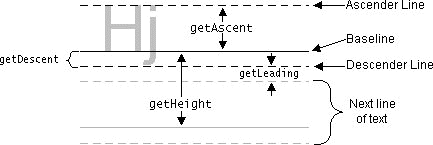
FontDemo.java. The example chooses the appropriate font by using aFontMetricsobject to get details of the font's size. For example, the following loop ensures that the longest string displayed by the applet ("drawRoundRect") fits within the space each shape is allotted.The example code above uses theboolean fontFits = false; Font currentFont = biggestFont; FontMetrics currentMetrics = getFontMetrics(currentFont); int size = currentFont.getSize(); String name = currentFont.getName(); int style = currentFont.getStyle(); while (!fontFits) { if ( (currentMetrics.getHeight() <= maxCharHeight) && (currentMetrics.stringWidth(longString) <= xSpace)) { fontFits = true; } else { if (size <= minFontSize) { fontFits = true; } else { currentFont = new Font(name, style, --size); currentMetrics = getFontMetrics(currentFont); } }GraphicsgetFont,setFont, andgetFontMetricsmethods to get and set the current font and to get theFontMetricsobject that corresponds to the font. From theFontMetricsgetHeightandstringWidth(String)methods, the example code gets vertical and horizontal size information about the font.The following figure shows some of the information that a
FontMetricsobject can provide about a font's size.Here's a summary of the
FontMetricsmethods that return information about a font's vertical size:
int getAscent(),int getMaxAscent()- The
getAscentmethod returns the number of pixels between the ascender line and the baseline. Generally, the ascender line represents the typical height of capital letters. Specifically, the ascent and descent values are chosen by the font's designer to represent the correct text "color", or density of ink, so that the text appears as the designer planned it. The ascent typically provides enough room for almost all of the characters in the font, except perhaps for accents on capital letters. ThegetMaxAscentmethod accounts for these exceptionally tall characters.
int getDescent(),int getMaxDescent()- The
getDescentmethod returns the number of pixels between the baseline and the descender line. In most fonts, all characters fall within the descender line at their lowest point. Just in case, though, you can use thegetMaxDescentmethod to get a distance guaranteed to encompass all characters.
int getHeight()- Returns the number of pixels normally found between the baseline of one line of text and the baseline of the next line of text. Note that this includes an allowance for leading.
int getLeading()- Returns the suggested distance (in pixels) between one line of text and the next. Specifically the leading is the distance between the descender line of one line of text and the ascender line of the next line of text. By the way, leading is pronounced LEDDing.
Note that the font size (returned by the
FontclassgetSizemethod) is an abstract measurement. Theoretically, it corresponds to the ascent plus the descent. Practically, however, the font designer decides exactly how tall a "12 point" font (for example) is. For example, 12-point Times is often slightly shorter than 12-point Helvetica. Typically, font size is measured in points, which are approximately 1/72 of an inch.The following list shows the methods that
FontMetricsprovides to return information about the horizontal size of a font's characters. These methods take into account the spacing around each character. More precisely, each method returns not the number of pixels taken up by a particular character (or characters), but the number of pixels by which the current point will be advanced when that character (or characters) is shown. We call this the advance width to distinguish it from the character or text width.
int getMaxAdvance()- The advance width (in pixels) of the widest character in the font.
int bytesWidth(byte[], int, int)- The advance width of the text represented by the specified array of bytes. The first integer argument specifies the starting offset of the data within the byte array. The second integer argument specifies the maximum number of bytes to check.
int charWidth(int),int charWidth(char)- The advance width of the specified character.
int charsWidth(char[], int, int)- The advance width of the string represented by the specified character array.
int stringWidth(String)- The advance width of the specified string.
int[] getWidths()- The advance width of each of the first 256 characters in the font.

|
|
Start of Tutorial > Start of Trail > Start of Lesson | Lesson Contents |