


 |
Start of Tutorial > Start of Trail > Start of Lesson | Lesson Contents |

|
Trail: Creating a GUI with JFC/Swing |
|
Lesson: Using Swing Components |
|
Help
on searching
Search technology |
How to Use Text Fields
A text field is a basic text control that lets the user enter a small amount of text. When the user indicates that text entry is complete (usually by pressing Return), the text field fires an action event .
Generally you use the
JTextField class to provide text fields.
If you need to provide a password field --
an editable text field that doesn't show
the characters the user types --
use the
JPasswordField
class instead.
This section discusses both text fields and password fields.
If you want a text field that also provides a menu of strings to choose from, consider using an editable combo box. If you need to obtain more than one line of input from the user, then you should use one of the classes that implements a general-purpose text area.
The applet below displays a basic text field and a text area. The text field is editable; the text area isn't. When the user presses Return in the text field, the applet copies the text field's contents to the text area, and then selects all the text in the text field.

This is a picture of the applet's GUI. To run the applet, click the picture. The applet will appear in a new browser window.
You can find the source for the program in
TextDemo.java.
Here's the code from TextDemo
that creates the text field in the applet:
The integer argument passed to thetextField = new JTextField(20); textField.addActionListener(this); ... contentPane.add(textField);
JTextField constructor,
20 in the example,
indicates the number of columns in the field.
This number is used along with metrics provided by
the field's current font
to calculate the field's preferred width.
It does not limit the number of characters the user
can enter.
To do that, you need to implement a custom document,
as described in
General Rules for Using Text Components.
The next lines of code
register the applet as an action listener for the text field
and add the text field to the applet's content pane.
Here's the actionPerformed method
that handles action events from the text field:
public void actionPerformed(ActionEvent evt) {
    String text = textField.getText();
    textArea.append(text + newline);
    textField.selectAll();
}
JTextField's getText
method to retrieve the text currently contained by the text field.
The text returned by this method
does not include a newline character
for the Return key that fired the action event.
This example illustrates
using a basic, off-the-shelf text field
for entering textual data
and performing a task
when the text field fires an action event.
This is sufficient for many programs.
Other programs, however, need more advanced behavior.
As a subclass of
JTextComponent, JTextField can be configured and customized.
One common customization is to provide a text field
whose contents are validated.
This section covers the following advanced text field topics. To get most out of the information, you need to understand the material presented in the previous section, General Rules for Using Text Components.
- Creating a Validated Text Field
- Using a Document Listener on a Text Field
- Laying Out Label-Text Field Pairs
- Providing a Password Field
- The Text Field and Password Field API
- Examples that Use Text Fields and Password Fields
Creating a Validated Text Field
Many programs require users to enter textual data of a certain type or format. For example, a program might provide a text field for entering a date, a decimal number, or a phone number. The contents of such a text field must be validated before being used for any purpose. A text field can be action-validated or change-validated.The data in an action-validated field is checked each time the field fires an action event (each time the user presses the Return key). An action-validated field might, at any given point in time, contain invalid data. However, the data is validated before it's used for anything. To create an action-validated field, provide an action listener for your field and implement its
actionPerformedmethod as follows:
- Use
getTextto get the contents of the text field, orgetPasswordif you're using a password field.- Evaluate the value returned.
- If the value is valid, do whatever task or calculation is required. If the value is invalid, report an error and return without performing a task or calculation.
PasswordDemo, described later in this section, action-validates a password field in this manner.The data in a change-validated field is checked each time the field changes. A field that is change-validated can never contain invalid data because every change (keystroke, cut, copy, and so on) that might cause the data to be invalid is rejected. To create a change-validated text field you need to provide a custom document for your text field. If you aren't familiar with documents yet, see Concepts: About Documents.
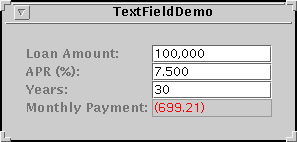
The application shown in the following figure has three change-validated text fields. The user enters loan information into the first three text fields. Each time the user types a character, the program validates the input and updates the result in the fourth text field.
Warning: Do not use a document listener for change validation. By the time a document listener has been notified of a change, it's too late, the change has already taken place. See the last couple of paragraphs in Listening for Changes on a Document for more information.
Try this:
- Compile and run the application. The source file is
TextFieldDemo.java. You will also needWholeNumberField.java,DecimalField.java, andFormattedDocument.java.
See Getting Started with Swing if you need help compiling or running this application.- Enter information into the text fields and see the results.
If you attempt to enter invalid data, the program beeps.- Try to type into the fourth text field.
You can't because it isn't editable. However, you can select the text.- Resize the window.
Note how the labels and text fields remain aligned. Laying Out Label-Text Field Pairs talks more about this feature of the program.WholeNumberField, which is a subclass ofJTextField. By overriding thecreateDefaultModelmethod,WholeNumberFieldestablishes a customDocumentsubclass -- an instance ofWholeNumberDocument-- as the document for eachWholeNumberFieldcreated:Here's the implementation ofprotected Document createDefaultModel() { return new WholeNumberDocument(); }WholeNumberDocument:This class overrides theprotected class WholeNumberDocument extends PlainDocument { public void insertString(int offs, String str, AttributeSet a) throws BadLocationException { char[] source = str.toCharArray(); char[] result = new char[source.length]; int j = 0; for (int i = 0; i < result.length; i++) { if (Character.isDigit(source[i])) result[j++] = source[i]; else { toolkit.beep(); System.err.println("insertString: " + source[i]); } } super.insertString(offs, new String(result, 0, j), a); } }insertStringmethod, which is called every time any string or character is about to be inserted into the document.WholeNumberDocument's implementation ofinsertStringevaluates each character to be inserted into the text field. If the character is a digit, the document allows it to be inserted. Otherwise, the method beeps and prints an error message. ThusWholeNumberDocumentallows the numbers in the range 0, 1, 2, ...An interesting implementation detail is that our custom document class does not have to override the
removemethod. Theremovemethod is called each time a character or group of characters is removed from the text field. Because removing a digit from an integer cannot produce an invalid result, this class does not pay attention to removals.The other two input fields in the example, as well as the uneditable Monthly Payment field, are all instances of
DecimalField, a customJTextFieldsubclass.DecimalFielduses a custom document,FormattedDocument, that allows only data of a particular format to be entered.
FormattedDocumenthas no knowledge of the actual format of its content. Instead,FormattedDocumentrelies on a format, an instance of a subclass ofFormatFormattedDocumentmust specify which format theFormattedDocumentuses.The Loan Amount and Monthly Payment text fields use a
NumberFormatThe following code creates the APR text field's format:moneyFormat = NumberFormat.getNumberInstance();As the code shows, the same class (percentFormat = NumberFormat.getNumberInstance(); percentFormat.setMinimumFractionDigits(3);NumberFormat) can support different formats. Furthermore,Formatand its subclasses are locale-sensitive, so a decimal field can be made to support formats for specific countries and regions. Refer to Formattingin the internationalization trail for detailed information about formats.
Here is
FormattedDocument's implementation ofinsertString:The method uses the format to parse the result of the proposed insertion. If the result is properly formatted, this method calls its superclass'spublic void insertString(int offs, String str, AttributeSet a) throws BadLocationException { String currentText = getText(0, getLength()); String beforeOffset = currentText.substring(0, offs); String afterOffset = currentText.substring(offs, currentText.length()); String proposedResult = beforeOffset + str + afterOffset; try { format.parseObject(proposedResult); super.insertString(offs, str, a); } catch (ParseException e) { Toolkit.getDefaultToolkit().beep(); System.err.println("insertString: could not parse: " + proposedResult); } }insertmethod to do the insertion. If the result is not properly formatted, the program beeps.In addition to overriding
insertString,FormattedDocumentalso overrides theremovemethod. Recall that theremovemethod is called each time a character or group of characters is to be removed from the document.Thepublic void remove(int offs, int len) throws BadLocationException { String currentText = getText(0, getLength()); String beforeOffset = currentText.substring(0, offs); String afterOffset = currentText.substring(len + offs, currentText.length()); String proposedResult = beforeOffset + afterOffset; try { if (proposedResult.length() != 0) format.parseObject(proposedResult); super.remove(offs, len); } catch (ParseException e) { Toolkit.getDefaultToolkit().beep(); System.err.println("remove: could not parse: " + proposedResult); } }FormattedDocumentimplementation of theremovemethod is similar to its implementation of theinsertStringmethod. The format parses the result of the proposed change and performs the removal or not, depending on whether the result is valid.
Note: The solution provided by this example is not a general solution for all types of formats. Some formats -- most notablyDateFormat-- can't be change-validated simply by calling theparseObjectmethod. Here's an example to help you understand why. Suppose you have a text field that contains the date "May 25, 1996" and want to change it to "June 11, 1996". You would select May and begin typing "June". As soon as you've typed the "J", the field won't parse because "J 25, 1996" is not a valid date even though it's a valid change. A number of solutions are possible for dates and other types of data where a partially completed change creates an invalid result. You can change the change-validation such that it rejects all definitely invalid changes (typing "X" into a date for example) but allows all possibly valid changes. Or you can switch to an action-validated field.
Using a Document Listener on a Text Field
If you can't use a document listener for field validation, what can you use it for? Use it to listen to, but not interfere with, changes to the document's content. The loan calculator uses the following document listener to update the monthly payment after every change:This is an appropriate use of a document listener. For general information about document listeners, see Listening for Changes on a Document and How to Write a Document Listenerclass MyDocumentListener implements DocumentListener { public void insertUpdate(DocumentEvent e) { calculateValue(e); } public void removeUpdate(DocumentEvent e) { calculateValue(e); } public void changedUpdate(DocumentEvent e) { // we won't ever get this with a PlainDocument } private void calculateValue(DocumentEvent e) { Document whatsup = e.getDocument(); if (whatsup.getProperty("name").equals("amount")) amount = amountField.getValue(); else if (whatsup.getProperty("name").equals("rate")) rate = rateField.getValue(); else if (whatsup.getProperty("name").equals("numPeriods")) numPeriods = numPeriodsField.getValue(); payment = computePayment(amount, rate, numPeriods); paymentField.setValue(payment); } }
Laying Out Label-Text Field Pairs
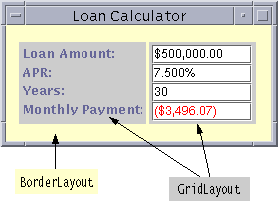
This section describes how the label and the text fields in the example are aligned and requires some knowledge of layout managers.Rows of label and text field pairs such as those found in the loan calculator are quite common on preference panels and panels that implement forms. Here's the code that lays out the label and text field pairs.
You may be surprised to find that the labels are laid out without reference to the text fields and, in fact, are in a different panel, yet align correctly with them. This is a side effect of the layout managers used by the program.. . . //Layout the labels in a panel JPanel labelPane = new JPanel(); labelPane.setLayout(new GridLayout(0, 1)); labelPane.add(amountLabel); labelPane.add(rateLabel); labelPane.add(numPeriodsLabel); labelPane.add(paymentLabel); //Layout the text fields in a panel JPanel fieldPane = new JPanel(); fieldPane.setLayout(new GridLayout(0, 1)); fieldPane.add(amountField); fieldPane.add(rateField); fieldPane.add(numPeriodsField); fieldPane.add(paymentField); //Put the panels in another panel, labels on left, //text fields on right JPanel contentPane = new JPanel(); contentPane.setBorder(BorderFactory.createEmptyBorder(20, 20, 20, 20)); contentPane.setLayout(new BorderLayout()); contentPane.add(labelPane, BorderLayout.CENTER); contentPane.add(fieldPane, BorderLayout.EAST); setContentPane(contentPane); . . .As the diagram illustrates, the program uses two GridLayoutmanagers, one to lay out the column of labels and one for the column of text fields.GridLayoutguarantees that all of its components are the same size, so all of the text fields are the same height and all of the labels are the same height. But the text fields are not the same height as the labels. This is achieved with a third layout manager, aBorderLayout. With just two components at East and Center,BorderLayoutguarantees the columns are the same height. Now the labels and text fields are the same height, and thus, they are aligned.Another way to get labels and text fields to align is to use the AWT's most flexible, complex layout manager:
GridBagLayoutTextSamplerDemoprogram for an example. In particular, look at this handy method, which you can probably copy verbatim into your programs:addLabelTextRows(JLabel[] labels, JTextField[] textFields, GridBagLayout gridbag, Container container)
Providing a Password Field
Swing provides theJPasswordFieldJTextField, to use in place of a text field for password entry. For security reasons, a password field doesn't show the characters the user types. Instead the field displays another character such as an asterisk '*'. As another security precaution, the password field stores its value as an array of characters, rather than as a string.
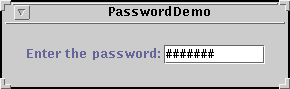
PasswordDemobrings up a small window to prompt the user to type in a password:Here's the code from PasswordDemothat creates and sets up the password field.As with text fields, the argument passed into theJPasswordField passwordField = new JPasswordField(10); passwordField.setEchoChar('#'); passwordField.addActionListener(new ActionListener() { ... });JPasswordFieldconstructor indicates that the field should be 10 columns wide. By default a password field displays an asterisk '*' for each character typed. The call tosetEchoCharchanges it to a pound sign '#'. Finally, the code adds an action listener to the password field, which action-validates the value typed in by the user. Here's the implementation of the action listener'sactionPerformedmethod:Thepublic void actionPerformed(ActionEvent e) { JPasswordField input = (JPasswordField)e.getSource(); char[] password = input.getPassword(); if (isPasswordCorrect(password)) { JOptionPane.showMessageDialog(f, "Success! You typed the right password."); } else { JOptionPane.showMessageDialog(f, "Invalid password. Try again.", "Error Message", JOptionPane.ERROR_MESSAGE); } }getPasswordreturns a character array. Password information should not be stored or passed around in strings because strings are not secure.A program using a password field typically validates the password before completing any actions requiring the password. This program calls a private method,
isPasswordCorrect, that compares the value returned bygetPasswordto a value stored in a character array.
Note: ThegetPasswordmethod did not exist in Swing 1.0.3 and earlier releases. In those releases, you have to usegetText. In that case, your program should convert the value returned fromgetTextto a character array upon return. You should not store the value in aString. In releases that contain thegetPasswordmethod,getTexthas been deprecated.
The Text Field and Password Field API
The following tables list the commonly usedJTextFieldandJPasswordFieldconstructors and methods. Other methods you are likely to call are defined inJTextComponent. Refer to the API tables in Summary of Text.You might also invoke methods on a text field or password field that it inherits from its other ancestors, such as
setPreferredSize,setForeground,setBackground,setFont, and so on. See The JComponent Class for tables of commonly used inherited methods.The API for using text fields and password fields falls into these categories:
- Setting or Getting the Field's Contents
- Fine Tuning the Field's Appearance
- Implementing the Field's Functionality
Setting or Getting the Field's Contents Method or Constructor Purpose JTextField()
JTextField(String)
JTextField(String, int)
JTextField(int)
JTextField(Document, String, int)Create a text field. When present, the intargument specifies the desired width in columns. TheStringargument contains the field's initial text. TheDocumentargument provides a custom document for the field.JPasswordField()
JPasswordField(String)
JPasswordField(String, int)
JPasswordField(int)
JPasswordField(Document, String, int)Create a password field. When present, the intargument specifies the desired width in columns. TheStringargument contains the field's initial text. TheDocumentargument provides a custom document for the field.void setText(String)
String getText()Set or get the text displayed by the text field. Note that getTextis deprecated for password fields in Swing 1.0.3 and higher releases.char[] getPassword()
(inJPasswordField)Set or get the text displayed by the text field. Note that this method does not exist in Swing 1.0.3 and lower releases.
Fine Tuning the Field's Appearance Method or Constructor Purpose void setEditable(boolean)
boolean isEditable()Set or get whether the user can edit the text in the text field. void setColumns(int);
int getColumns()Set or get the number of columns displayed by the text field. This is really just a hint for computing the field's preferred width. int getColumnWidth()Get the width of the text field's columns. This value is established implicitly by the font. void setHorizontalAlignment(int);
int getHorizontalAlignment()Set or get how the text is aligned horizontally within its area. You can use JTextField.LEFT,JTextField.CENTER, andJTextField.RIGHTfor arguments.void setEchoChar(char)
char getEchoChar()
(inJPasswordField)Set or get the echo character -- the character displayed instead of the actual characters typed by the user.
Implementing the Field's Functionality Method or Constructor Purpose void addActionListener(ActionListener)
void removeActionListener(ActionListener)Add or remove an action listener. Document createDefaultModel()Override this method to provide a subclass with a custom document.
Examples that Use Text Fields and Password Fields
This table shows the examples that useJTextFieldorJPasswordFieldand where those examples are described.
Example Where Described Notes TextDemoThis section An applet that uses a basic text field with an action listener. TextFieldDemoThis section Uses and provides implementations for two different types of change-validated fields. PasswordDemoThis section Uses an action-validated password field. ControlPane,UtilitiesLet's Play Uses a grid bag layout to align labels with text fields. See the addParameterRowmethod inUtilities. Part of the BINGO player application.CustomDialog.javaHow to Make Dialogs Includes a text field whose value is checked. Part of DialogDemo(under the More Dialogs tab).

|
|
Start of Tutorial > Start of Trail > Start of Lesson | Lesson Contents |